




Wie können wir helfen?
Menu: Contents (only in the browser)
Table of contents
How do I get to the course page in the administration?
You can get to the page that lists all the courses that are on the platform by clicking on the Courses link in the header, which is located between Users and Reports.
Why is the page blank?
If you do not have trainer permissions, you will not be able to view courses on this site
How do I change the display of the course page?
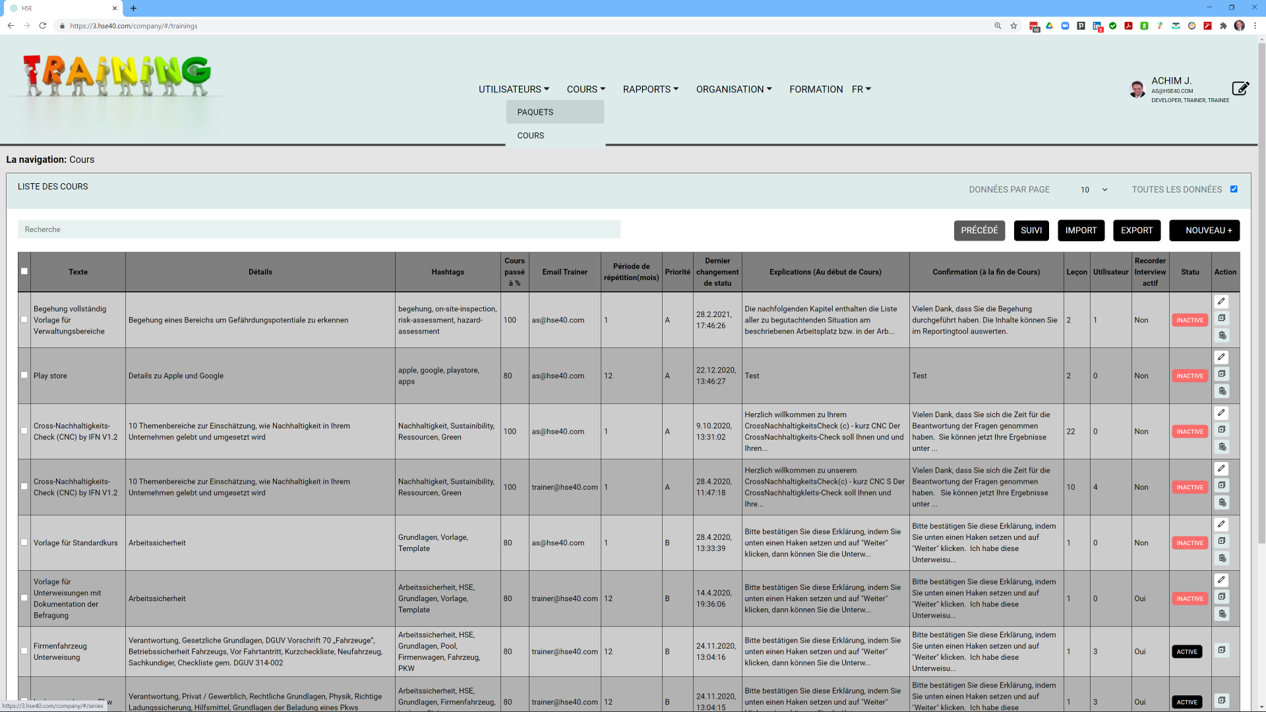
You can change the display on the course page above the list, for example by only displaying active courses or changing the number per page. Both are done at the top right, as is scrolling through several pages. You can find quick navigation with direct selection of pages at the end of the list.
Why are some courses or users not displayed?
If some course content or users are not displayed, this is often because the check mark in the top right is missing. Check this box and all users and all content will be displayed
How do I change the number of courses or users displayed?
You can change the number of courses displayed or the number of users displayed per page in the drop-down menu at the top right, in which you can select the number of users or courses per page.
How do I create a new course?
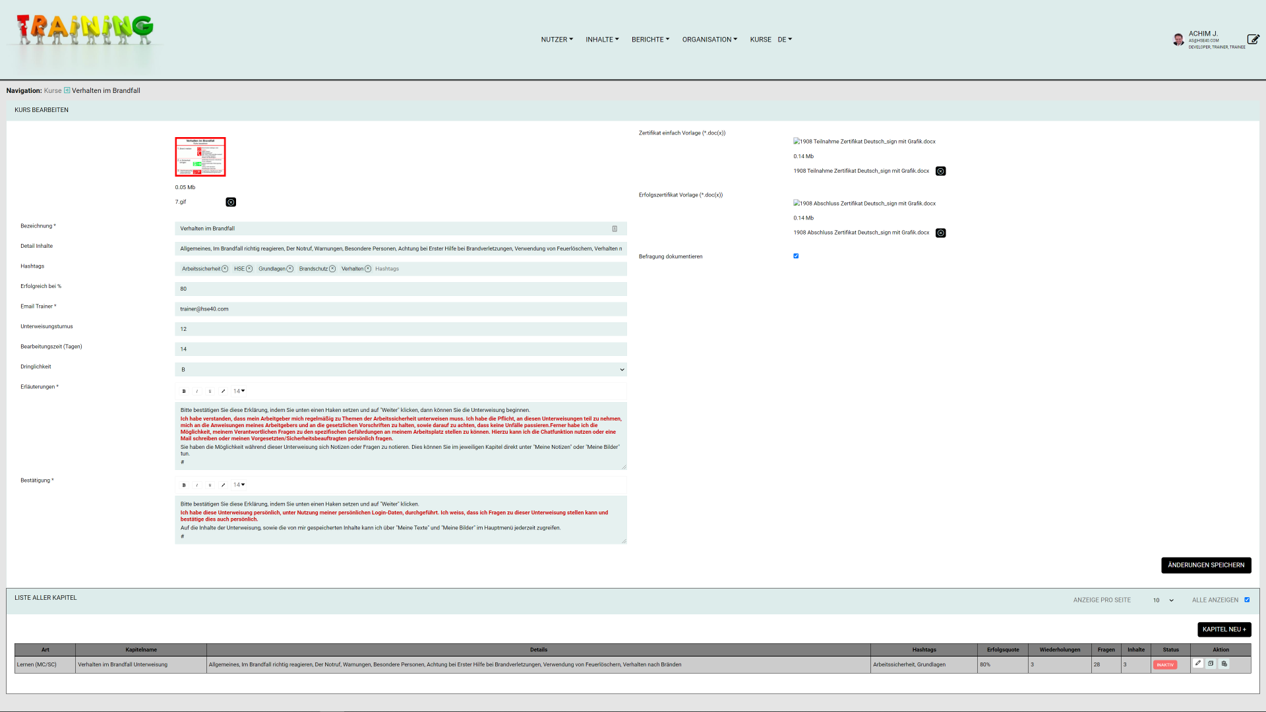
You can create a new course by clicking on the “Add Course” or “New Course” button. The courses are structured analogous to books, that is, there is a front page with a title and picture and a back page with the confirmations, which the learner receives as free text, as well as a spine, a table of contents and parameters on how this book should be “read”. In the opening statement, the foreword or the final statement, the epilogue you can, for example, inform the users about the objectives of this course or, as with courses on occupational safety or data protection, inform them about their legal rights and obligations. The final declaration is often used to ensure that users confirm that they have edited this content independently and used their login and password. Just like with a book, you can now add chapters to the end of this page. Before you do this, please save the settings of this course and reopen the course before adding the 1st chapter.
How do I add or edit chapters?
Chapters that you can add differ in chapters for learning, chapters for testing or chapters with free text or survey (poll) answers. Each chapter form contains questions as well as documents related to the topic. Create a new chapter and select the shape of the chapter. Please type the name for the chapter. In the next line you can enter the content of the chapter as information for the users. You also often need this information for the certificates in order to describe the training or course content. Your tags allow you, for example, user groups or other short information that will help you later assign courses or course packages. The percentage indicates how many questions the user must answer correctly in this chapter for this chapter to be considered successfully completed. You can also specify whether the cover photo of the training will also be used as the cover photo for this chapter or, if the option is activated, you can choose whether a random order of the questions is selected by the software. There are different types of chapters:
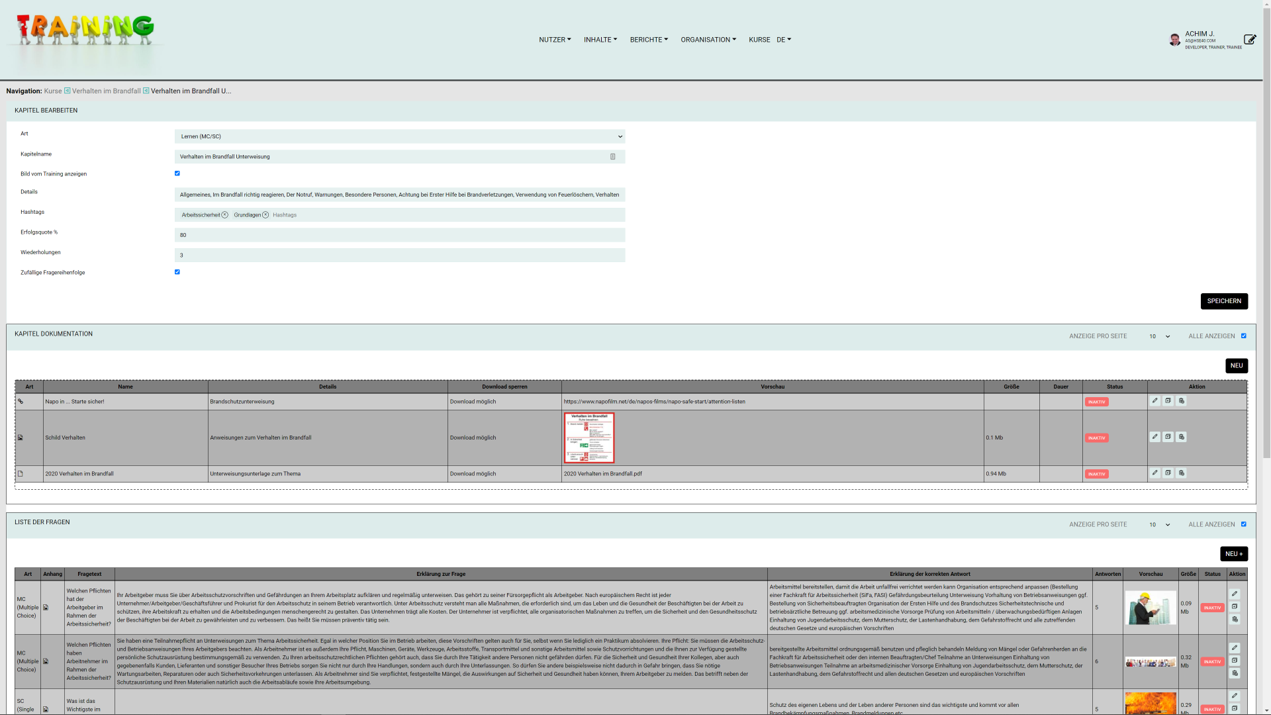
Learning chapters allow you to add single choice (SC) and multiple choice (MC) questions, which require you to specify which answer options are correct for each question. The only difference between learning and test chapters is that in the learning chapter the user receives feedback after answering each question as to whether they answered the question correctly or incorrectly. In test chapters, the user only receives this feedback after all questions have been answered. Free text chapters can contain free text questions / survey questions that do not contain right or wrong answers. For free text questions, the user enters their answer in free text, which can then be edited accordingly by a manager. For poll/survey questions, the user enters their assessment of a question. For example, from very good to bad.
How do I export a course?
You select the content to export by ticking it on the left. With the “Export” button, the software generates a ZIP file and automatically saves it in your downloads folder.
You can then re-import this ZIP file onto other platforms, for example. When exporting several courses into a ZIP file, please note that only one ZIP file is generated when exporting several courses.Please note that this ZIP file may not be changed; it cannot be edited externally. The file name can be changed, but the format must be maintained.
How do I import a course?
To import a course, click on “Import” and select the ZIP file to import, which will then automatically be imported into the training list as an inactive training.
What elements are there in a new course?
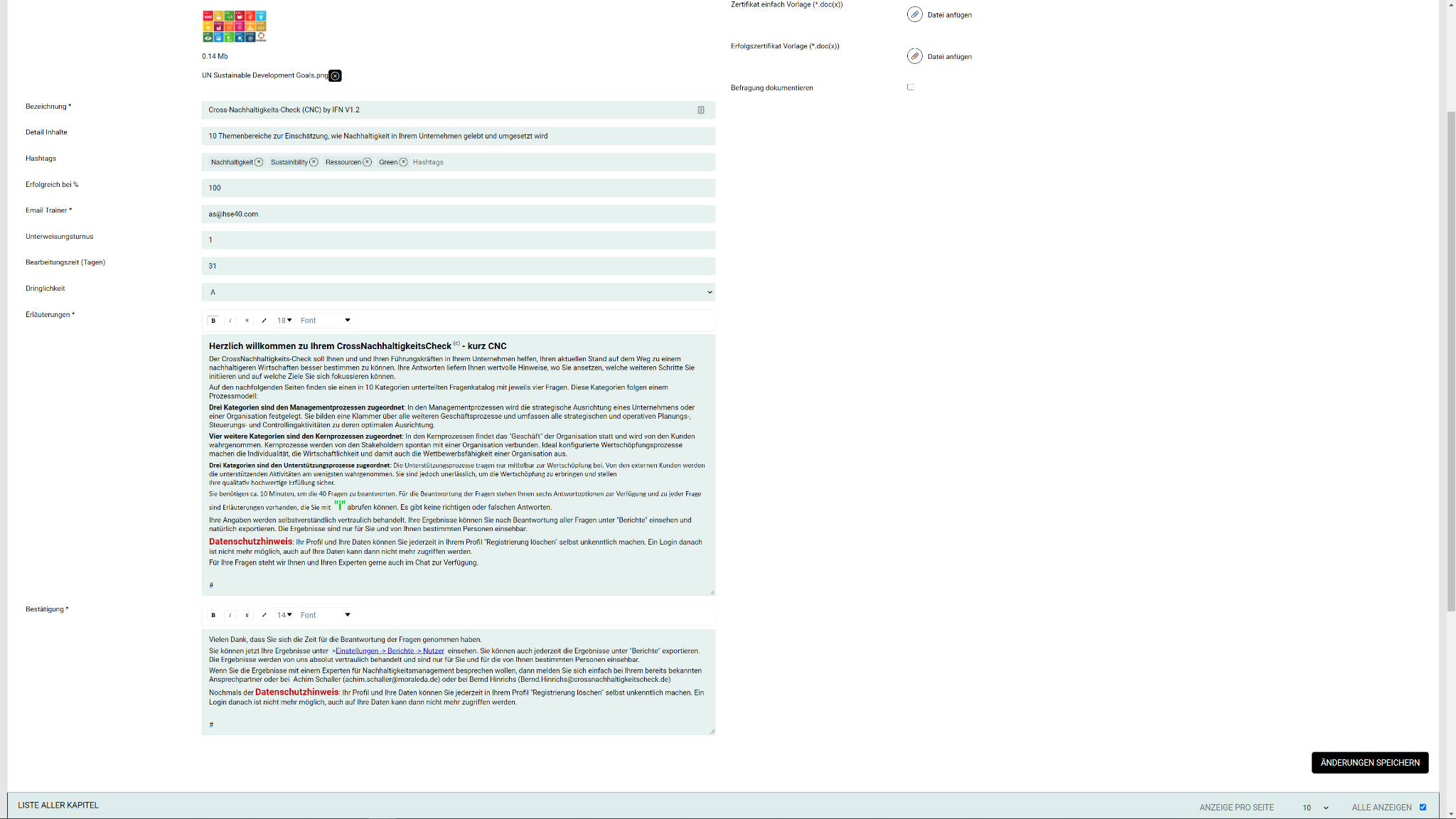
The variables you can set for each training or course are:
Name des Trainings
Content of the training (which will later be issued on the certificates)
Tags to make it easier to find the training and to make it easier to combine training that includes the same locations or the same activities or basic training into training packages
What percentage of all questions included in this training must be answered correctly for the training to be considered successfully completed
Cover image (when uploading, please make sure that the image is not too large, ideally smaller than 500 KB so that the content does not take too long to load for users
Percentage, i.e. what percentage of all questions must be answered correctly for the training to be considered successfully completed
Trainer / creator of the course based on the existing trainers, please note that external trainers must first be created (registered) in the portal and receive trainer rights (see also user management and user groups)
After the trainer, you set the instruction cycle in months, i.e. after how many months this instruction will automatically be repeated. If this instruction is never to be repeated, i.e. it is activated once for the user, you can set the instruction cycle to the maximum value of 256 months, i.e. the training is repeated in 21 years and 4 months. If you want to make this course available to users frequently, you can play with the instruction cycle and the processing time below. For example, a training cycle of one month and a processing time of more than 30 days means that a training course is released to the assigned users very quickly after completion.
The urgency determines where this instruction appears in the ad in the app or on the web. A workouts are displayed first, followed by B workouts and followed by C workouts. How exactly you set your priorities internally is up to you.
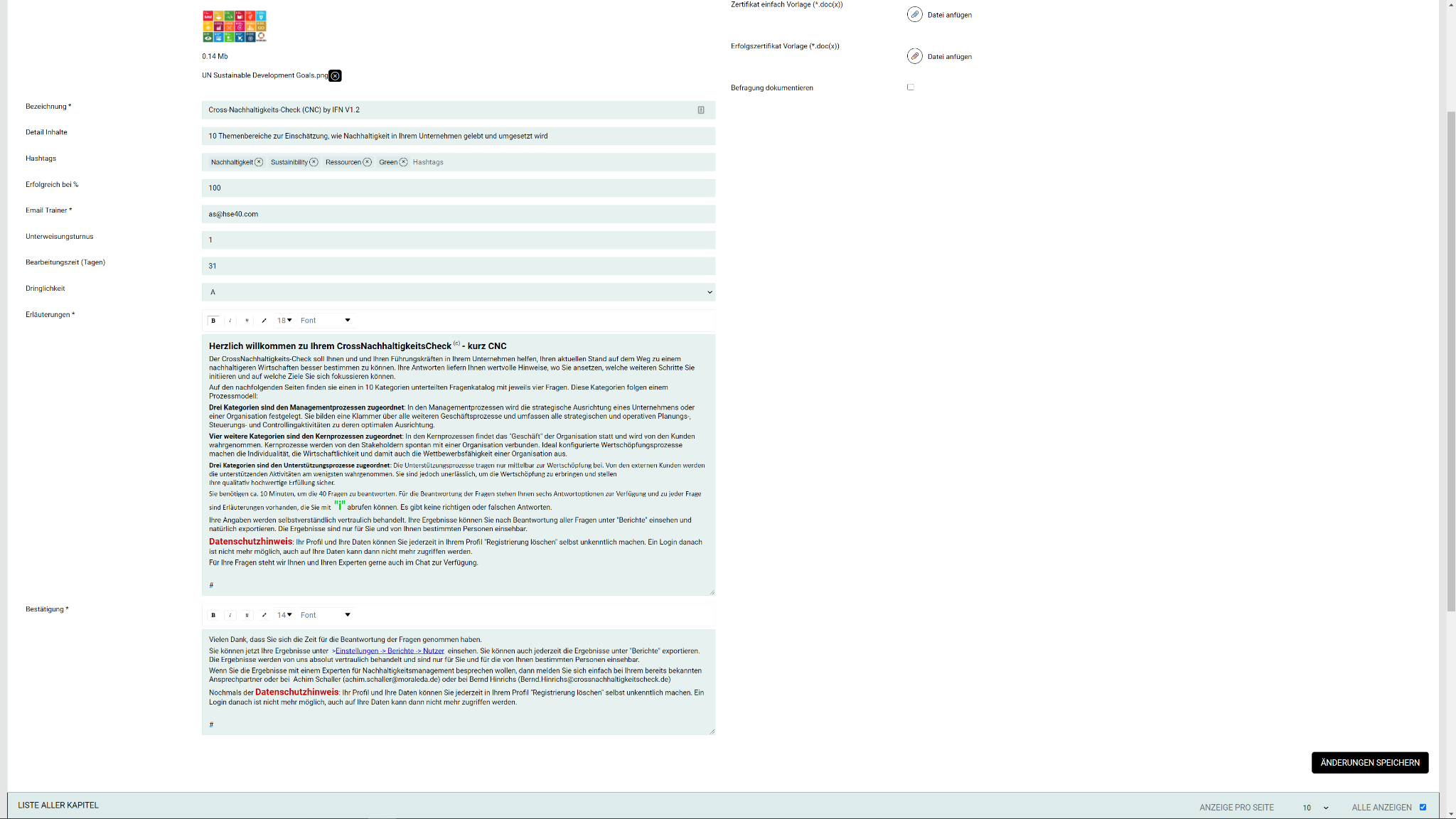
Starting declaration at the beginning of the training as well as final declaration, which you can create as formatted text. Various formatting options are available to you, including different fonts and the small pen

sets the font color and the background color of the font, if you want to delete the background color then click on the pen

select Highlights and scroll to the end of the tiles, the white tile is a little hidden at the bottom. You can repeat the whole thing for the final declaration. There is no possibility of hiding these explanations, which is why our tip uses the explanations not only for information about rights and obligations but also for goals and information that should be passed on in this course. Even in the final declaration, you are not bound to ask the user to confirm that they have completed this course independently using their login data. You can also write a very nice farewell and a thank you with a note about who to contact if you have any questions about this content can.
2 certificates, a certificate as a simple template is issued if the user does not meet the minimum requirement of correctly answered questions. The success certificate is issued if the user meets or exceeds this minimum requirement.
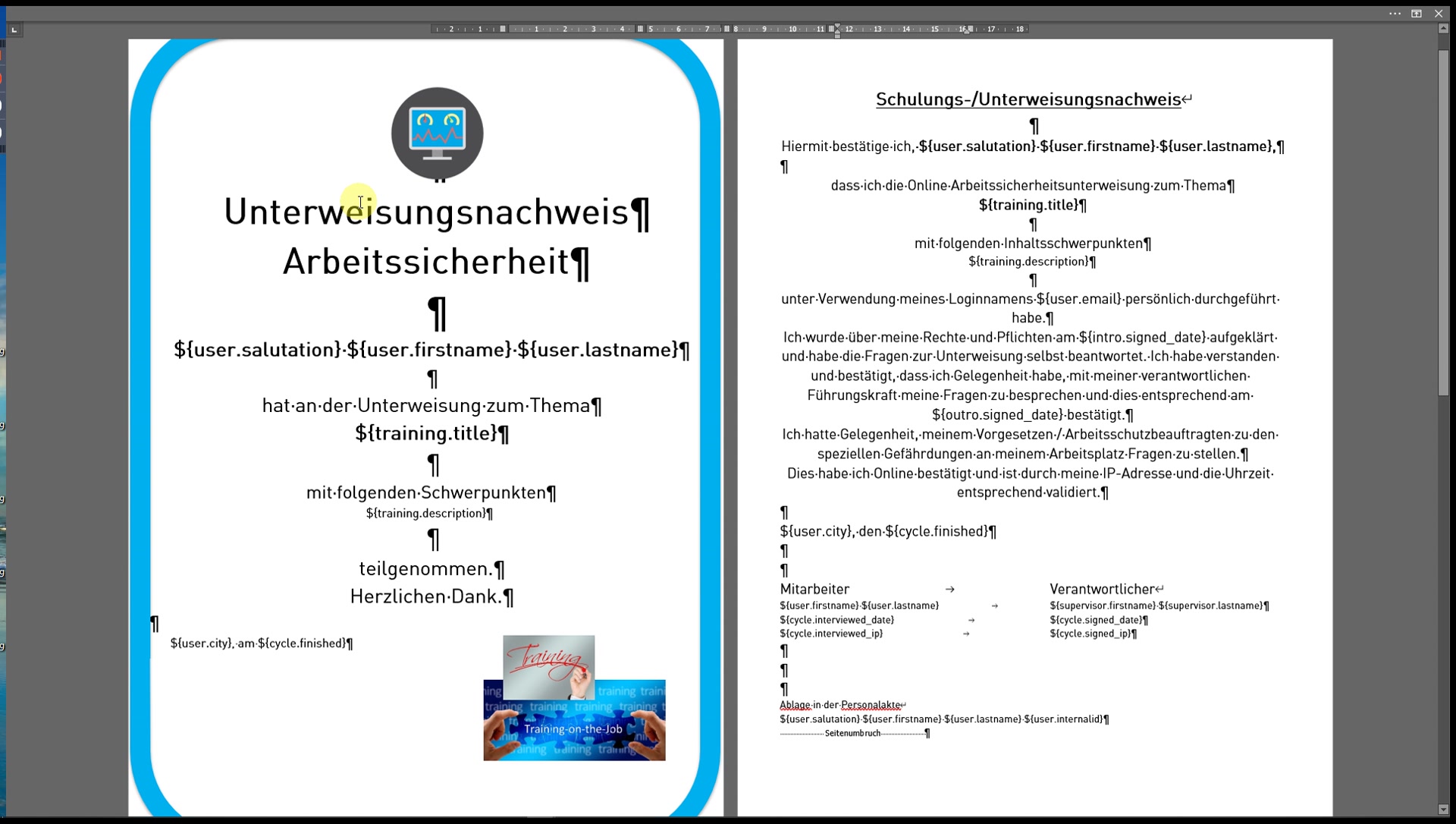
Both certificates are Microsoft Word templates with corresponding database fields, which are used when creating them in the software. You can find out how to create certificates here. Certificates Lastly, you decide whether this course legally requires a survey, which must be documented. If the survey has to be documented or if a survey has to be documented, it is necessary to tick the last box.
Important: Please save your entries and reopen the course to edit the chapters.
How do I create a certificate or certificate template?
You can create certificates as a document in MS Word. In this Word document you can also use graphics and borders that Word offers. Please make sure that when you set the database fields, you have in mind how much text can be contained in a database field so that the certificate can be output cleanly and legibly. You can find out how to use Word in the corresponding Microsoft tutorials.
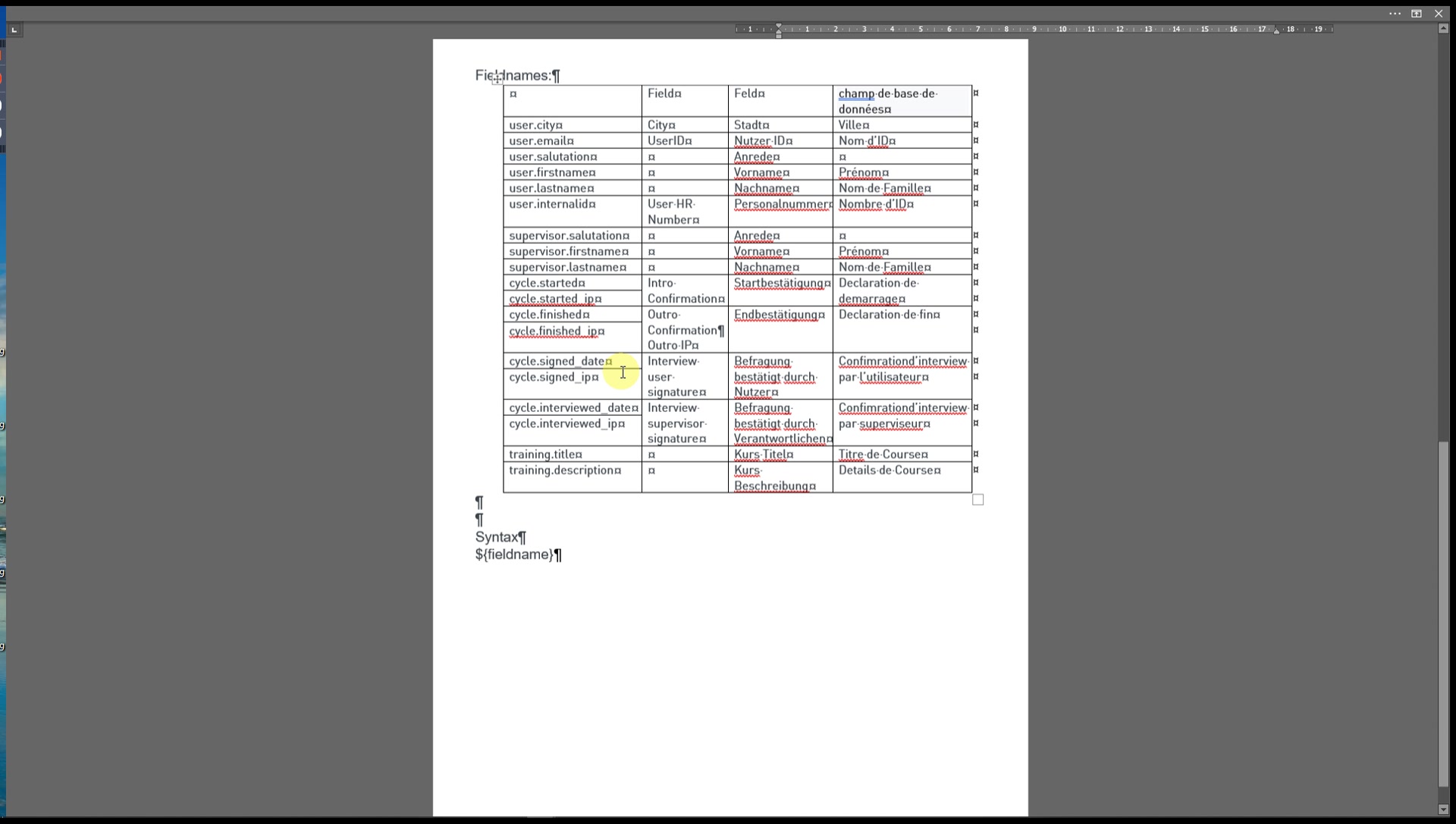
Which fields can I use in a certificate?
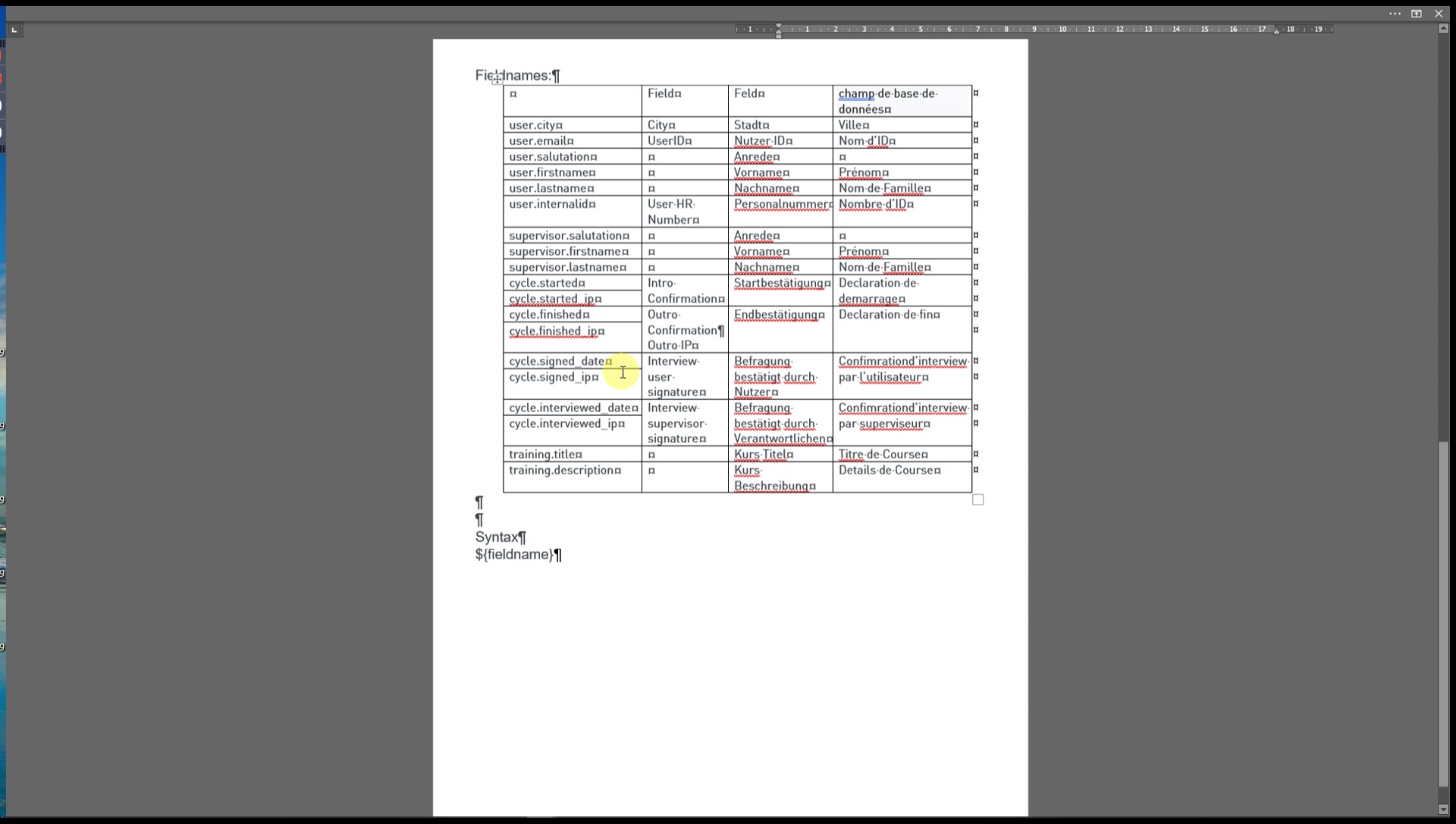
You can find the fields that you can use in a certificate on page 3 of our sample certificate (Download).
How do I create multi-page certificates?
You can also create multi-page certificates in Word. You can also use fields multiple times in different positions, so that, for example, you have one page for the user and a second page with the same instructions for the HR department or boss to sign.
What do opening declaration and closing declaration mean?
Entry and closing explanation are 2 text fields, both of which can be defined when creating a training or of course can also be changed when editing a created training. The initial declaration is displayed when the user opens the course and before the user can access the content and questions, they are asked to read this declaration and confirm that they have read and understood it. You can use any text, including very friendly welcome messages, asking you to tick the box below and then click “Continue” to unlock the content.
After processing all content and completing all chapters, the final statement comes in which you can, for example, thank the user, point out that they have further options, give them a contact person or, as with instructions, ask the learner to confirm that he has edited the content independently and that the use of his personal login data ensures a certain level of legal security. After confirming the final declaration, the certificate is created automatically and the user can download it.
In the case of legal instruction or training, the confirmations regarding the conversation in the form of a date-time stamp including IP addresses will be used as a digital signature on the certificate.
How do I change formats in the initial and final declaration?
Both windows are text windows in which the text can be formatted. You can choose font, you can highlight the font with bold, italic or underlined, you can with the small pencil

set the font color and the background of the font. Font size and font can also be adjusted. A tip: You can also format these texts, for example in Word, and then copy them formatted into these text fields. The formatting is often included and this means you can also insert links.
How do I create links in the declaration?
You can create links in the explanations by creating the texts in an external text editor in which you can create links, for example Microsoft Word, and then inserting them into these fields as formatted text.
How do I upload certificates?
To upload certificates, click on the circle with the staple. A window will open and you can select the corresponding Word file in the appropriate format. You will receive a template to create certificateshere.
What is the difference between a certificate and a certificate of completion?
The difference between a normal certificate and a completion or success certificate is that if the user has met the minimum requirement of correctly answered questions, the completion certificate is automatically generated. If the user has not met these requirements, the simple certificate is generated. You also have the option of only uploading one certificate, so that if the user does not meet the minimum requirements, they will not receive a certificate.
What does questioning mean?
For many legal training courses, such as occupational safety, data protection or compliance training, the law often stipulates that the employee can ask specific questions about the topic after the training has been completed. Often the employee's manager is the contact person for such cases, so both confirm that this conversation took place, even if no questions were asked. The legislature stipulates that there must be an opportunity to ask questions.
What does new chapter mean?
Our courses are structured analogously to books, which means there is a front with a title and a picture and an author and inside there is a short synopsis. There is a back of the book where the title is written shortly afterwards and maybe a few topics about what it is about is possible, and on the back we have further information about the contents of the book.
And like every book, our courses also contain chapters. Each course must contain at least one chapter. A chapter has a heading, a title, a short synopsis and a few tags. Another chapter consists of documents that are made available to the user so that they can familiarize themselves with the topic.
How can I track whether a user is working through the documentation?
There is no provision for tracking the extent to which the user views the documents, videos, listens to podcasts or uses the links.
How can I protect documents?
Documents can be marked as private, which means they cannot be downloaded or shared in the app. However, due to Windows, these documents can only be viewed in our app; they are blocked in the browser.
Why is there another percentage in a chapter?
Chapters also contain questions. You can find out which question types can be used under the keyword questions and question types. At the same time, you can specify whether you want to use the cover image of the book for the chapter, what percentage of the questions have to be answered correctly so that the chapter can be considered successfully completed, and the option of whether you want to ask these questions randomly or not and how often the user can be given the opportunity to answer the questions again.
Why is there another percentage in a chapter?
In a chapter with open questions, there are no questions to answer right or wrong, so the percentage is hidden.
The chapter is completed with all questions answered and cannot be repeated!
How do I create a new chapter?
You create a new chapter by adding a chapter to the home page of a training that you are currently creating or editing. The button for this is located above the chapter list
What types of chapters are there?
The types of chapters that we distinguish today are learning chapters / test chapters or “open questions” with surveys (poll questions) and free text questions. For more information, please read the details on the different chapter types
What is a learning chapter?
A learning chapter consists of documentation, as well as single and multiple choice questions to which the correct answers must be given. After each question, the learner receives feedback as to whether the question was answered correctly or incorrectly.
What is a test chapter?
In a test chapter, the user only receives feedback on how many of the questions were answered correctly after all questions have been answered.
There is also no feedback as to which answers were right or wrong.
What is an “Open Questions” chapter?
For “open questions” we work with free text or survey (poll) question types. There is no preset right or wrong here. The user enters his answer as free text or, in the case of poll questions, he gives his rating accordingly, and this is sent to the person who is evaluating the course.
Why is there another additional percentage in the chapter?
A training has a percentage that refers to all questions from all chapters that are in this training. A chapter also has a percentage number, which only relates to the questions that are in this chapter. Therefore, training and chapter 2 have different percentages
Why can't I save the random generator hook?
You cannot save the random generator hook if this option is unlicensed.
Which image is displayed as a chapter image?
The image of the training will be displayed as a chapter image if you check this box
How do I create a new question?
You create a new question by either duplicating an existing question and saving it - you'll find the little features to the right of the question - or adding and saving a new question.
Why can't I select multiple choice or single choice questions?
If you have set a free text chapter / poll chapter as the chapter type, then you can only use free text and poll questions, as these cannot be mixed with multiple and single choice questions in order to be able to carry out an evaluation accordingly
Why can't I select poll questions or free text questions?
You cannot select poll questions or free text questions if you have selected a learning or test chapter as the chapter type.
How do I format the question text?
Above the question text there are corresponding formats with which you can set the font size, font, font color and background accordingly. You can see how the whole thing will be played back on a mobile phone in the preview image when you edit the question.
How do I add an image, video or audio file to a question?
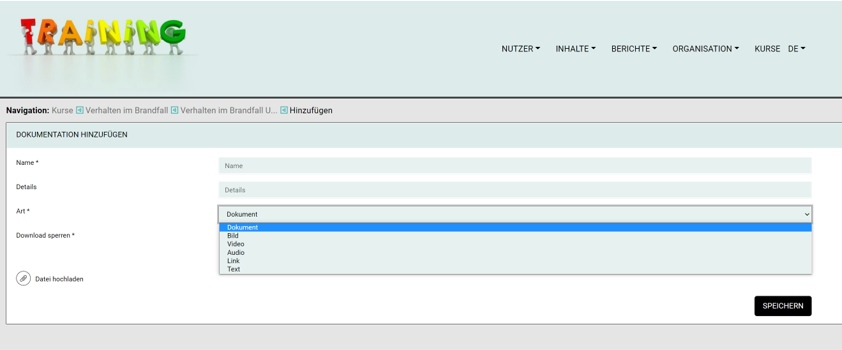
You can add documents to each chapter. You can either add these via drag-and-drop or upload them individually, whereby you have to select the document type when uploading. When you drag and drop, the software automatically sorts the various documents into their categories, which can still be edited as long as you are still inactive.
Links and text can be added using drag-and-drop.
Documents should not be too large so that download times do not take too long. We therefore recommend working with links for large files or if there are a lot of references and background information, for example to Wikipedia or other wikis. The same applies with large video files. The best way to do this is to upload it to YouTube and then make it available via a link, which also has the advantage that the player has already been tested for playing the video on all devices.
How do I add an explanation to the question?
An explanation of the question or an explanation of the answer should serve to provide the user with additional background information or case studies on this specific question in order to further improve the learning effect. These texts cannot be formatted and cannot be backed with images. Images can be attached to the questions, as well as videos or audio files
Why can't I save the explanation of the question or answer?
You cannot save the question and answer explanation if this option is not licensed.
Why do I get an error message when I try to save the question?
Error messages for answers that have been marked can, for example, come from the fact that you have marked several answers to a single choice question as correct or you have simply forgotten to mark answers to multiple choice questions.
What does the cell phone display mean on the question page?
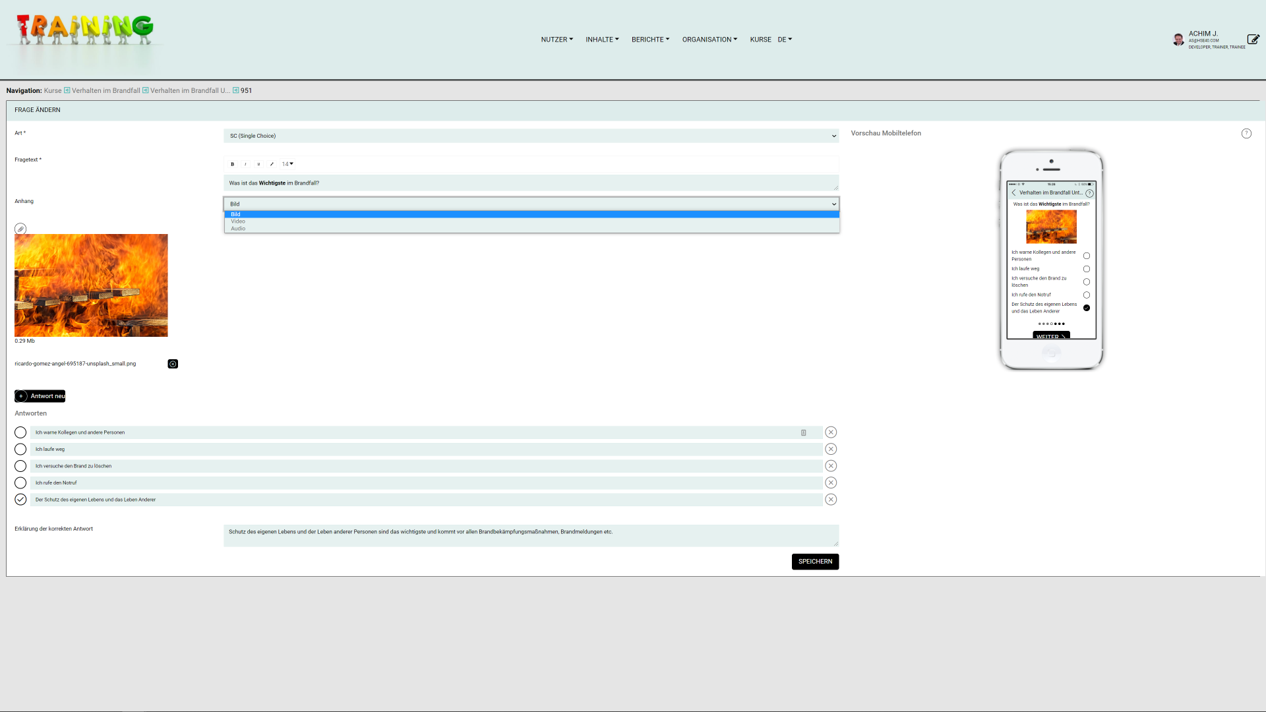
The mobile phone preview helps you to see how your question will appear to the learner on their mobile device, so that the course can be easily accessed and readable even on a small mobile phone. This preview is responsive and follows the input you make on the page.
How do I unlock questions, course content, or lessons in a course?
All questions and content, as well as lessons and trainings, must be switched from inactive to active status, which will give you the opportunity to do one last check.
It is necessary that you switch each individual question from inactive to active and also release the individual documents. Only then do you release the individual chapters on the course page.
Please note that you stick to this order: first questions, then documents, then lesson, then course. Once the training/chapter/document or question has been activated, you will not be able to edit individual documents or lessons.
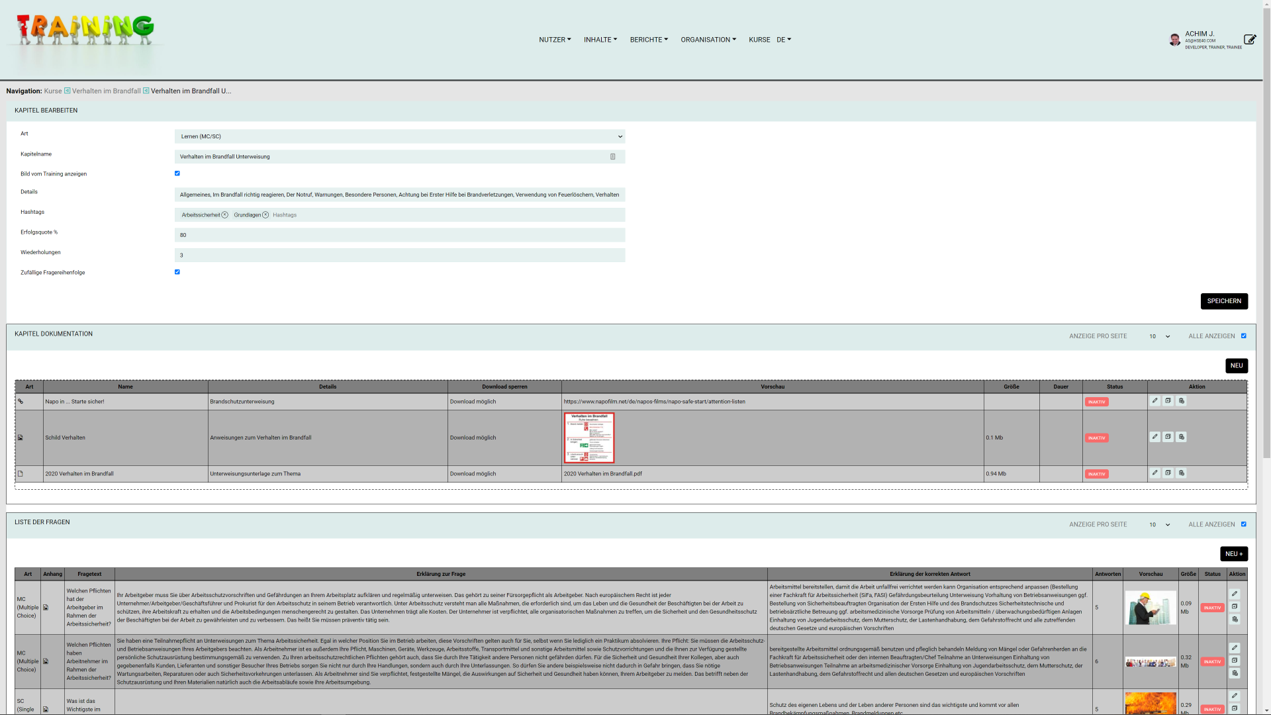
If it does happen, the only option you have is to duplicate that training/chapter/document or question and archive the erroneous item and repeat the process again.
Why can I no longer edit a question/chapter/training/document?
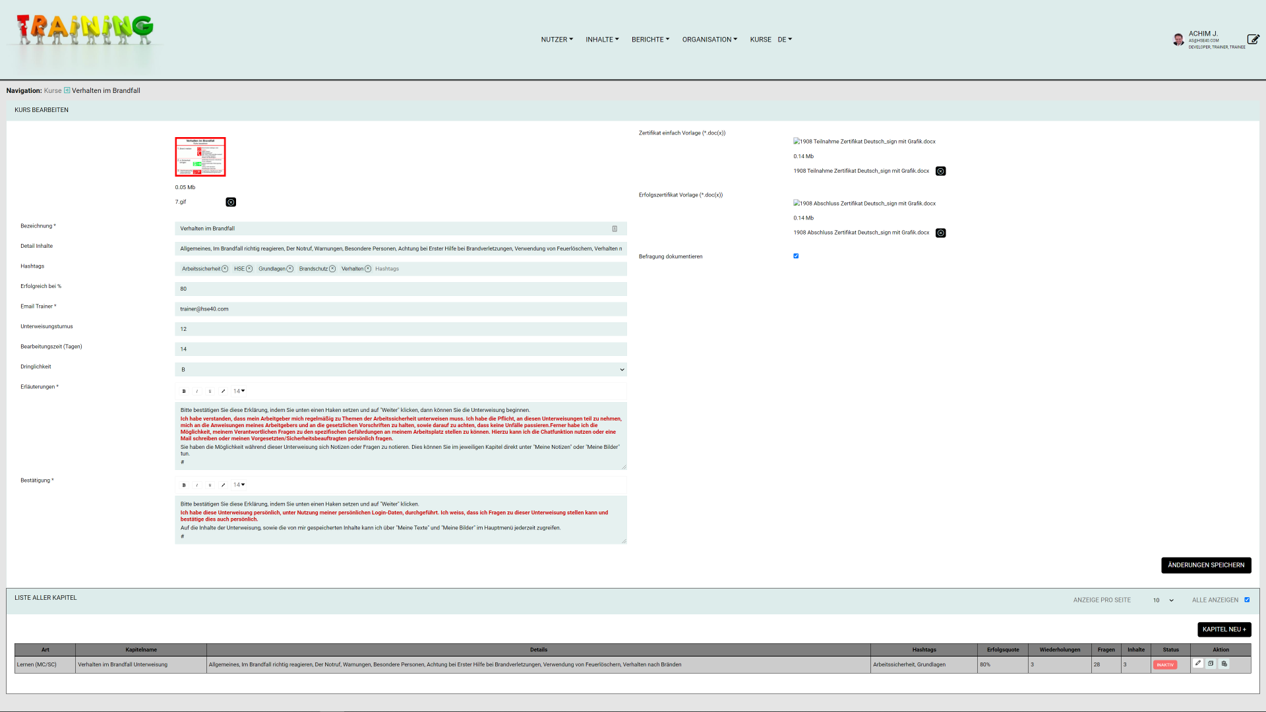
An element can only be edited as long as it has the status inactive.
Why can't I see a course or entire course packages for users?
This is often because the packages or user groups are still inactive.
Why do I no longer have access to the questions in a lesson?
If you have activated the lesson, you no longer have access to the content of this lesson, neither to the documents nor to the questions.
Why can I no longer edit a lesson?
If a lesson has the status active or archived, it can no longer be edited.
Training packages
How do I activate a training course for users?
In order to release training courses or training packages for users, it is necessary that individual short instructions are combined into training packages, which, for example, include work areas or activities or basics, so that these packages can then be assigned to individual users or user groups.
How do I create training packages?
You create training packages by creating a new training package, making the appropriate entries and then adding the corresponding individual training courses to this package. When you're done, you can add users or user groups. Please note that this too
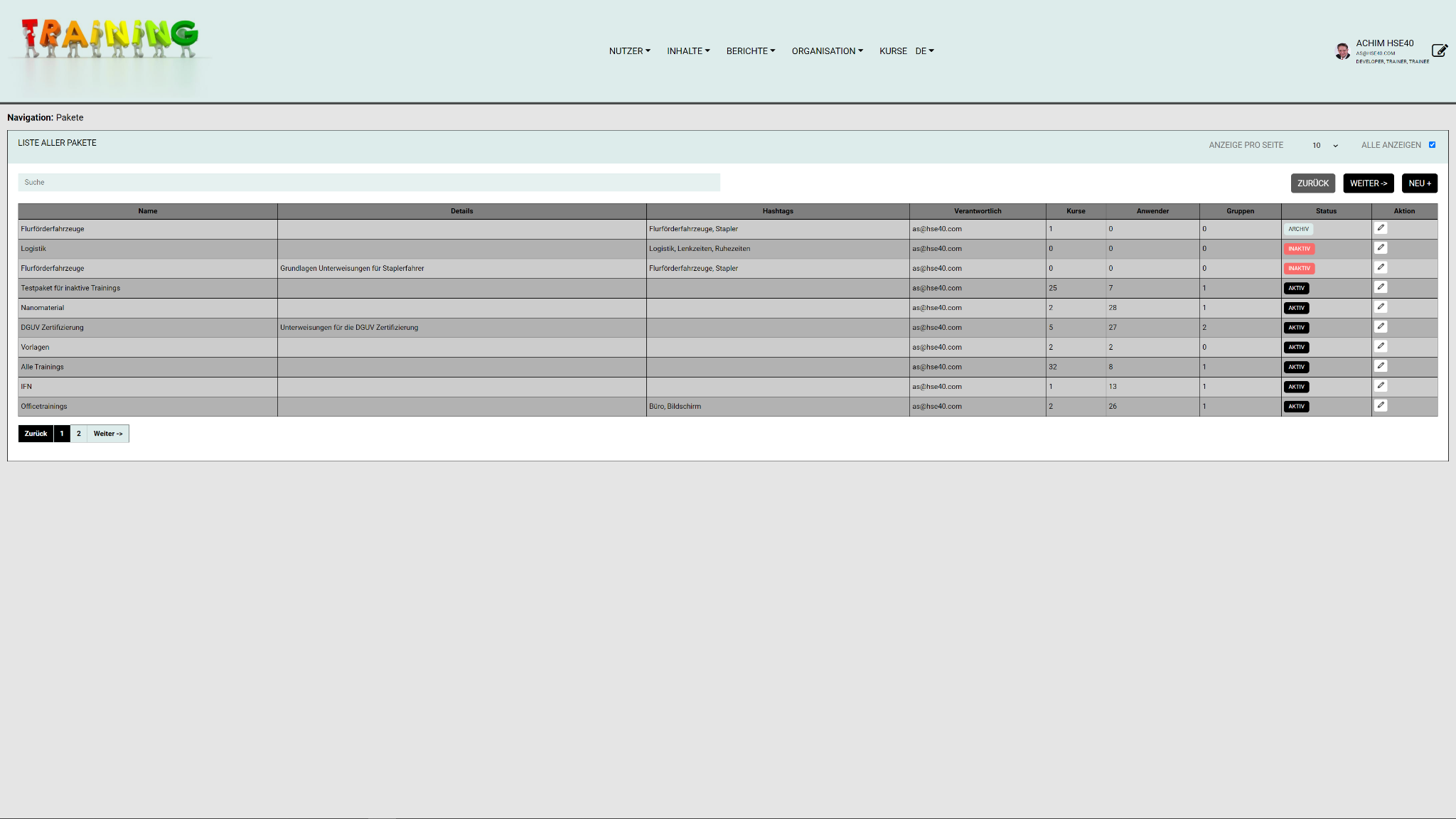
Training package must be changed from inactive to active status so that the training in this package can be released to users. You can then only switch from the active status to the archived status.
Please note that active training packages can also be edited at any time. The moment you set training packages to archived, the user assignment is lost and the trainings are no longer assigned to the users.
How do I add training to training packages?
You can add additional trainings or remove trainings to inactive or active training packages at any time. You can also archive trainings within these training packages or,
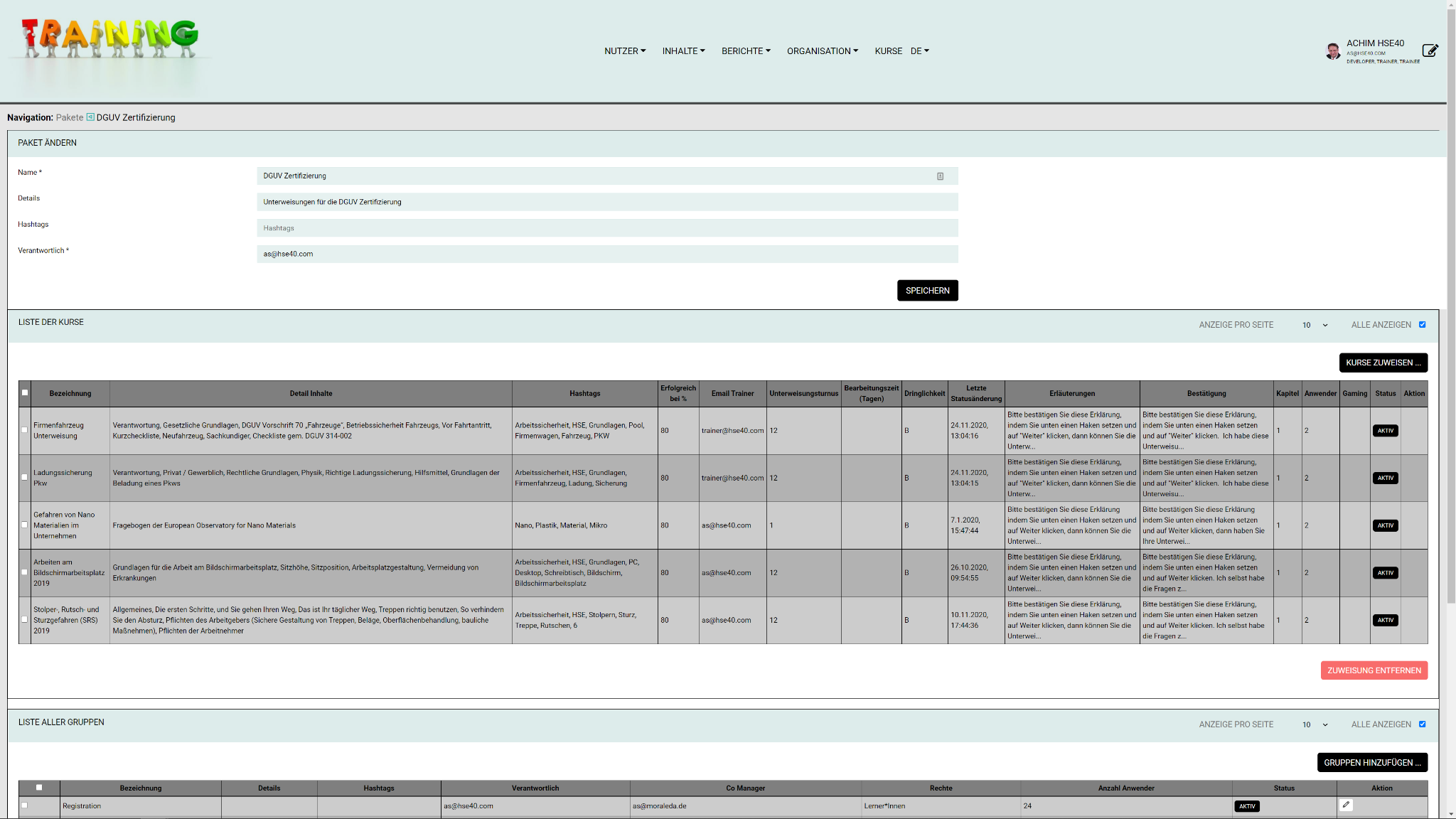
If these trainings are archived outside of the training packages, they are then automatically set to archived and can no longer be accessed by the user. You add trainings to training packages by selecting one or more trainings with a small check mark on the left in the list and then clicking the button to “Add training package”. You will receive a selection of training packages and click on the small plus to the right of the training package and you will receive a status message that these trainings have been added to the training package.
How do I add users to training packages?
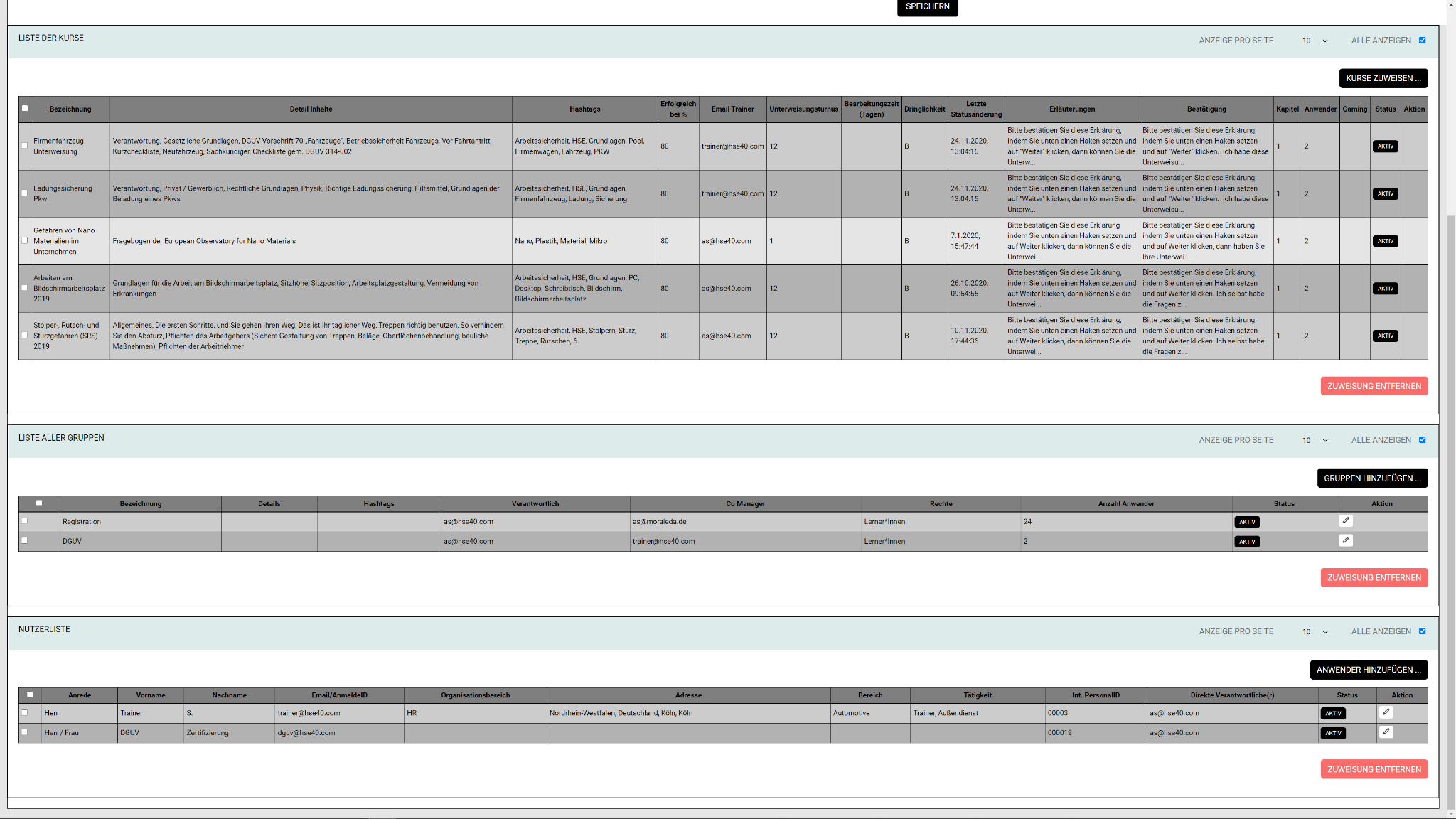
You add users to training packages by editing the training package (click on the
Pencil

to the right of the training package) and you will receive a list of which trainings are included in this training package, which groups are assigned and which users have been assigned to this training package. You can add courses, individual users or user groups at any time.
How do I add user groups to training packages?
See “Adding Users to Training Packages”
How do I change users or user groups in training packages?
You change users or user groups in training packages by either changing the user groups directly and the user groups by adding or deleting employees or users to groups, or if the general assignment changes, you can do so at any time even after calling up the training packages and Change the training packages for individual users and user groups, making changes that have a direct impact.
How do I import new training/courses?
You import new training courses by clicking on the “Import” button, selecting the corresponding ZIP file and clicking Open. The software automatically adds the new workout to the list of available workouts as an inactive workout. This means you can edit the training.
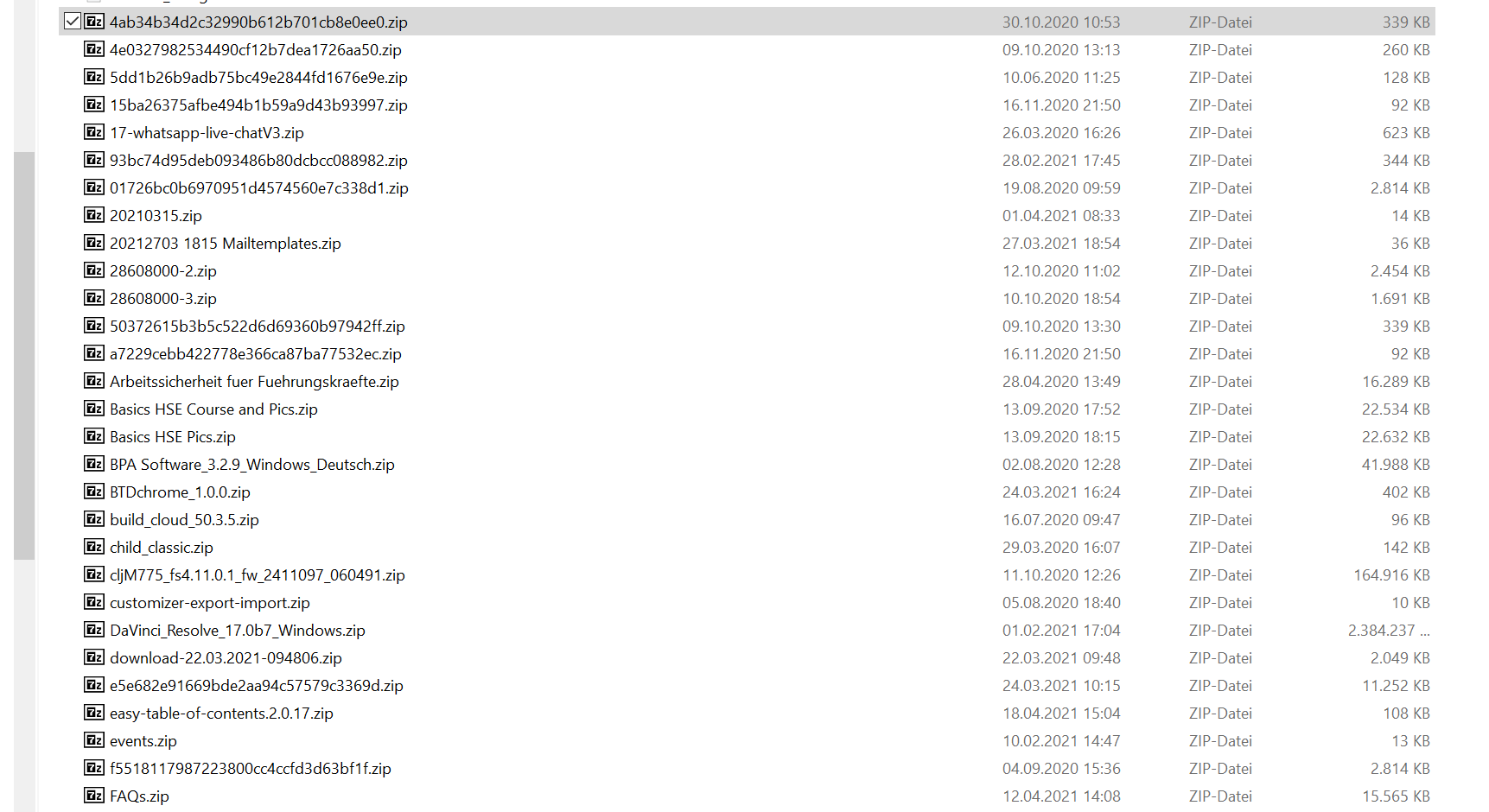
How do I export training?
You export single or multiple trainings by selecting these trainings and then clicking Export. The software automatically creates a ZIP file and saves it to the folder specified in the browser for downloads on the computer.
Can I edit ZIP files externally?
You can view the contents of the ZIP files, but as soon as you make any changes to the contents, you will receive an error message during import.
Can I rename ZIP files?
You can rename the ZIP files at any time for a better overview. However, the extension (file type) must remain unchanged.
How do I edit existing training courses?
You can edit trainings that have the status inactive at any time.
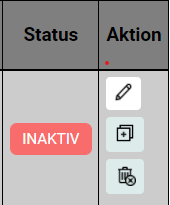
Active or archived training courses can no longer be edited. To edit these you can use an active or archived training
duplicate. This then appears in the training list as an inactive duplicate of the active or archived training and you can edit the training.
How do I archive training courses?
You archive training or courses by clicking on the “active” button.
The status then switches from active to archived and these trainings can no longer be accessed by users. Users currently working in this course can complete the course. However, this can no longer be seen in the list of completed courses.
How do I duplicate archived training?
You can duplicate archived training courses by clicking on the button on the right

Click “Duplicate”. The duplicate appears as a new training in the training list
Why can't I find training courses?
You can find archived training courses if you have the appropriate rights to display these training courses. You have to tick “all” at the top of the training list, then all available inactive, active and archived trainings will be displayed.
Content (only in the browser)
How do I get to the course page in the administration?
You can get to the page that lists all the courses that are on the platform by clicking on the Courses link in the header, which is located between Users and Reports.
Why is the page blank?
If you do not have trainer permissions, you will not be able to view courses on this site
How do I change the display of the course page?
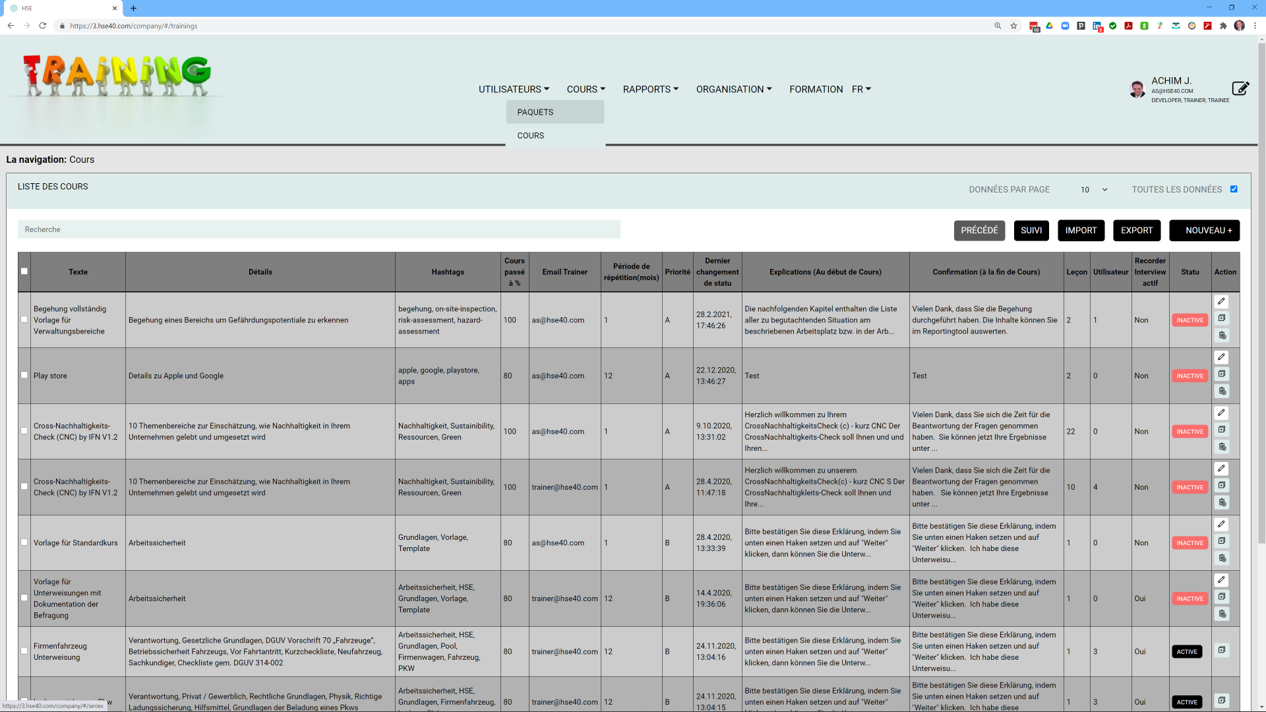
You can change the display on the course page above the list, for example by only displaying active courses or changing the number per page. Both are done at the top right, as is scrolling through several pages. You can find quick navigation with direct selection of pages at the end of the list.
Why are some courses or users not displayed?
If some course content or users are not displayed, this is often because the check mark in the top right is missing. Check this box and all users and all content will be displayed
How do I change the number of courses or users displayed?
You can change the number of courses displayed or the number of users displayed per page in the drop-down menu at the top right, in which you can select the number of users or courses per page.
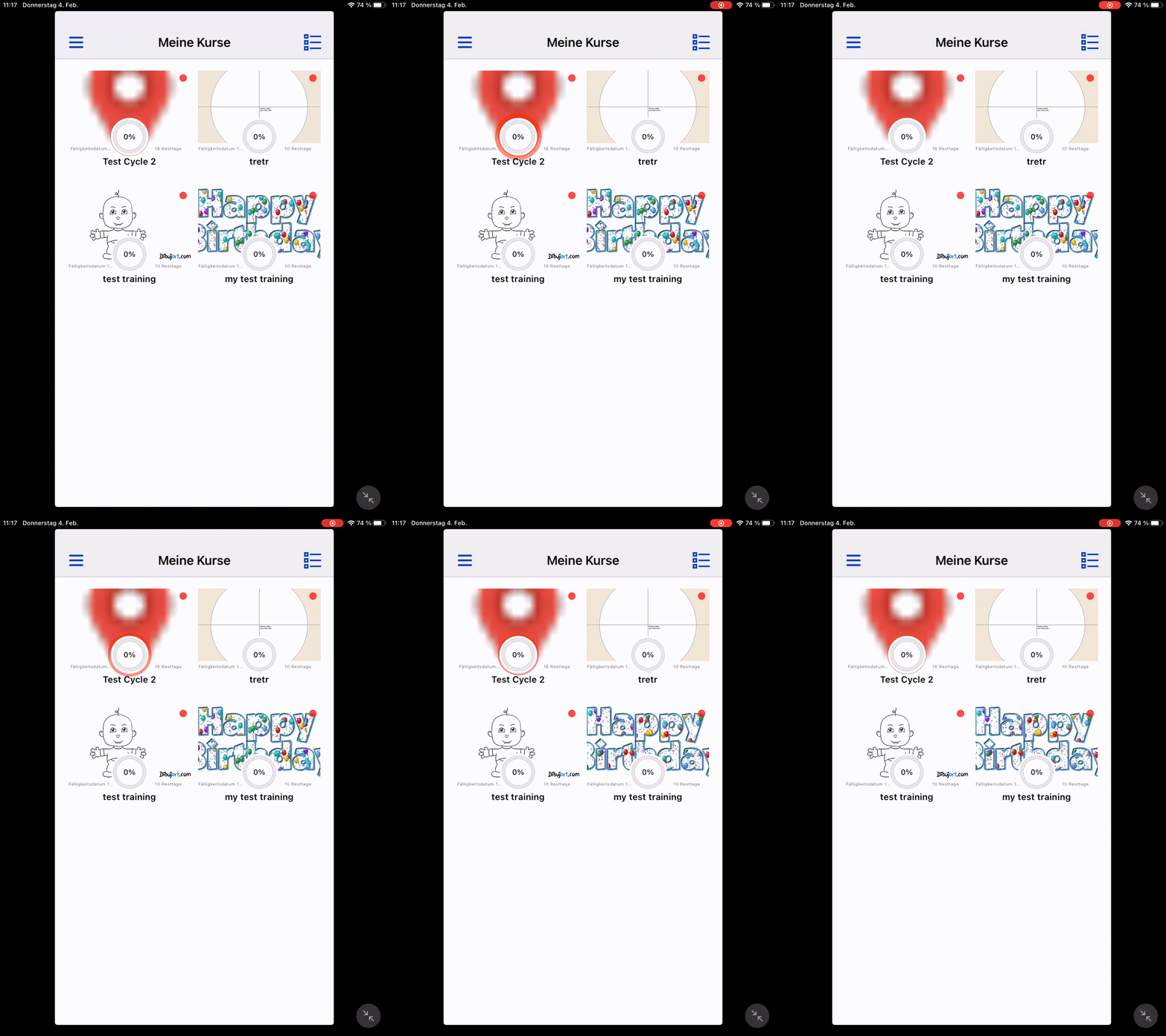
How do I create a new course?
You can create a new course by clicking on the “Add Course” or “New Course” button. The courses are structured analogous to books, that is, there is a front page with a title and picture and a back page with the confirmations, which the learner receives as free text, as well as a spine, a table of contents and parameters on how this book should be “read”. In the opening statement, the foreword or the final statement, the epilogue you can, for example, inform the users about the objectives of this course or, as with courses on occupational safety or data protection, inform them about their legal rights and obligations. The final declaration is often used to ensure that users confirm that they have edited this content independently and used their login and password. Just like with a book, you can now add chapters to the end of this page. Before you do this, please save the settings of this course and reopen the course before adding the 1st chapter.
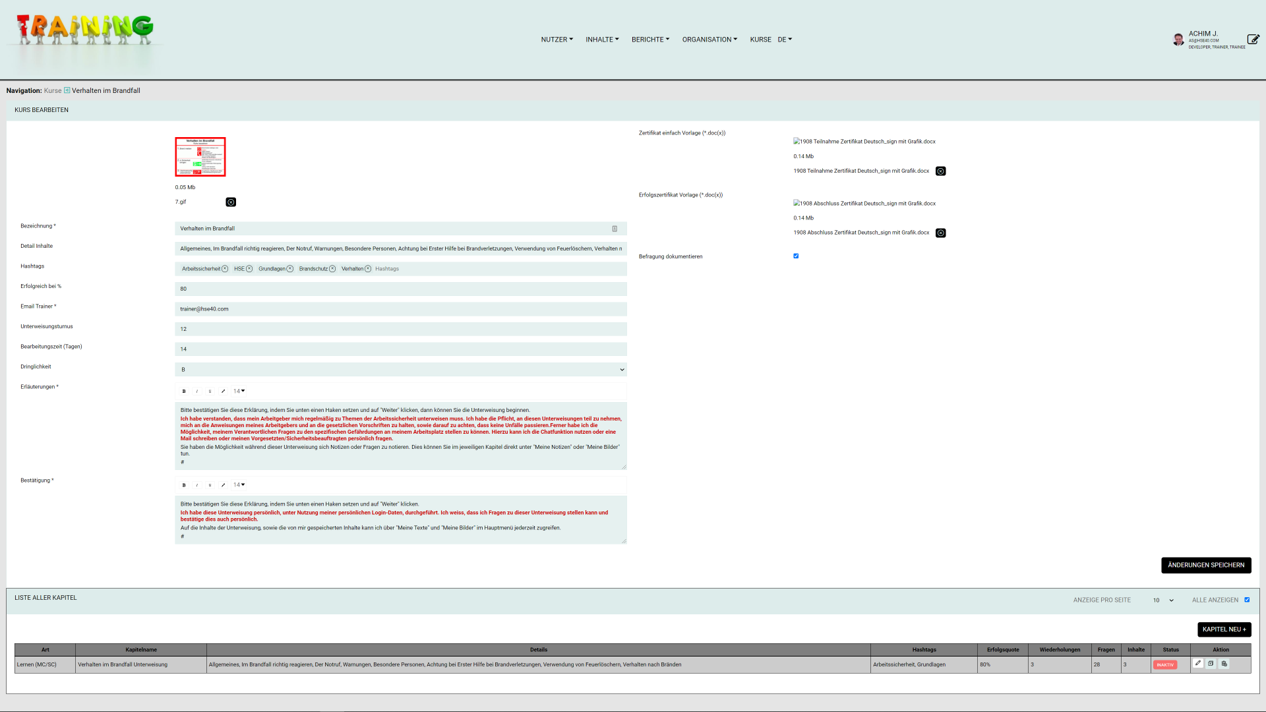
How do I add or edit chapters?
Chapters that you can add differ in chapters for learning, chapters for testing or chapters with free text or survey (poll) answers. Each chapter form contains questions as well as documents related to the topic. Create a new chapter and select the shape of the chapter. Please type the name for the chapter. In the next line you can enter the content of the chapter as information for the users. You also often need this information for the certificates in order to describe the training or course content. Your tags allow you, for example, user groups or other short information that will help you later assign courses or course packages. The percentage indicates how many questions the user must answer correctly in this chapter for this chapter to be considered successfully completed. You can also specify whether the cover photo of the training will also be used as the cover photo for this chapter or, if the option is activated, you can choose whether a random order of the questions is selected by the software. There are different types of chapters:
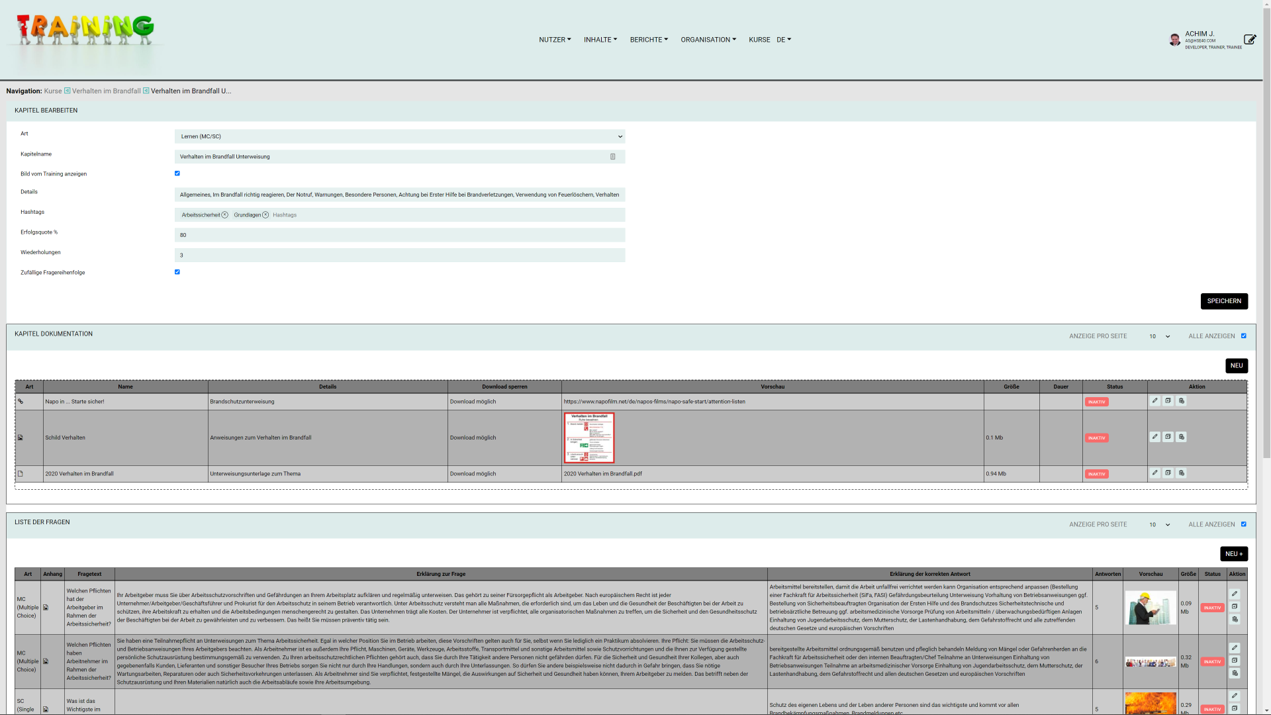
Learning chapters allow you to add single choice (SC) and multiple choice (MC) questions, which require you to specify which answer options are correct for each question. The only difference between learning and test chapters is that in the learning chapter the user receives feedback after answering each question as to whether they answered the question correctly or incorrectly. In test chapters, the user only receives this feedback after all questions have been answered. Free text chapters can contain free text questions / survey questions that do not contain right or wrong answers. For free text questions, the user enters their answer in free text, which can then be edited accordingly by a manager. For poll/survey questions, the user enters their assessment of a question. For example, from very good to bad.
How do I export a course?
You select the content to export by ticking it on the left. With the “Export” button, the software generates a ZIP file and automatically saves it in your downloads folder.
You can then re-import this ZIP file onto other platforms, for example. When exporting several courses into a ZIP file, please note that only one ZIP file is generated when exporting several courses.Please note that this ZIP file may not be changed; it cannot be edited externally. The file name can be changed, but the format must be maintained.
How do I import a course?
To import a course, click on “Import” and select the ZIP file to import, which will then automatically be imported into the training list as an inactive training.
What elements are there in a new course?
The variables you can set for each training or course are:
Name des Trainings
Content of the training (which will later be issued on the certificates)
Tags to make it easier to find the training and to make it easier to combine training that includes the same locations or the same activities or basic training into training packages
What percentage of all questions included in this training must be answered correctly for the training to be considered successfully completed
Cover image (when uploading, please make sure that the image is not too large, ideally smaller than 500 KB so that the content does not take too long to load for users
Percentage, i.e. what percentage of all questions must be answered correctly for the training to be considered successfully completed
Trainer / creator of the course based on the existing trainers, please note that external trainers must first be created (registered) in the portal and receive trainer rights (see also user management and user groups)
After the trainer, you set the instruction cycle in months, i.e. after how many months this instruction will automatically be repeated. If this instruction is never to be repeated, i.e. it is activated once for the user, you can set the instruction cycle to the maximum value of 256 months, i.e. the training is repeated in 21 years and 4 months. If you want to make this course available to users frequently, you can play with the instruction cycle and the processing time below. For example, a training cycle of one month and a processing time of more than 30 days means that a training course is released to the assigned users very quickly after completion.
The urgency determines where this instruction appears in the ad in the app or on the web. A workouts are displayed first, followed by B workouts and followed by C workouts. How exactly you set your priorities internally is up to you.
Starting declaration at the beginning of the training as well as final declaration, which you can create as formatted text. Various formatting options are available to you, including different fonts and the small pen

sets the font color and the background color of the font, if you want to delete the background color then click on the pen

select Highlights and scroll to the end of the tiles, the white tile is a little hidden at the bottom. You can repeat the whole thing for the final declaration. There is no possibility of hiding these explanations, which is why our tip uses the explanations not only for information about rights and obligations but also for goals and information that should be passed on in this course. Even in the final declaration, you are not bound to ask the user to confirm that they have completed this course independently using their login data. You can also write a very nice farewell and a thank you with a note about who to contact if you have any questions about this content can.
2 certificates, a certificate as a simple template is issued if the user does not meet the minimum requirement of correctly answered questions. The success certificate is issued if the user meets or exceeds this minimum requirement.
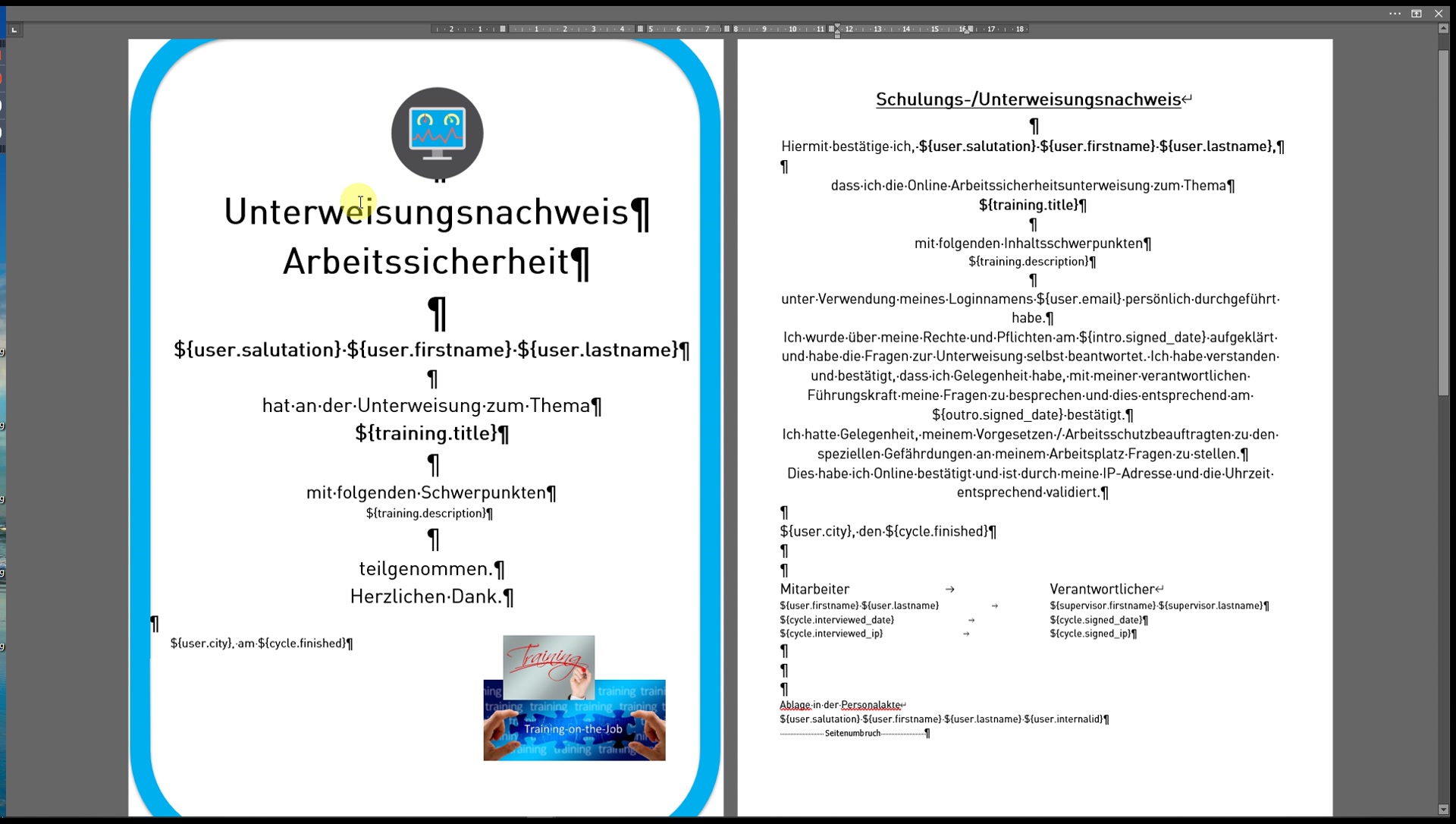
Both certificates are Microsoft Word templates with corresponding database fields, which are used when creating them in the software. You can find out how to create certificates here. Certificates Lastly, you decide whether this course legally requires a survey, which must be documented. If the survey has to be documented or if a survey has to be documented, it is necessary to tick the last box.
Important: Please save your entries and reopen the course to edit the chapters.
How do I create a certificate or certificate template?
You can create certificates as a document in MS Word. In this Word document you can also use graphics and borders that Word offers. Please make sure that when you set the database fields, you have in mind how much text can be contained in a database field so that the certificate can be output cleanly and legibly. You can find out how to use Word in the corresponding Microsoft tutorials.
Which fields can I use in a certificate?
You can find the fields that you can use in a certificate on page 3 of our sample certificate (Download).
How do I create multi-page certificates?
You can also create multi-page certificates in Word. You can also use fields multiple times in different positions, so that, for example, you have one page for the user and a second page with the same instructions for the HR department or boss to sign.
What do opening declaration and closing declaration mean?
Entry and closing explanation are 2 text fields, both of which can be defined when creating a training or of course can also be changed when editing a created training. The initial declaration is displayed when the user opens the course and before the user can access the content and questions, they are asked to read this declaration and confirm that they have read and understood it. You can use any text, including very friendly welcome messages, asking you to tick the box below and then click “Continue” to unlock the content.
After processing all content and completing all chapters, the final statement comes in which you can, for example, thank the user, point out that they have further options, give them a contact person or, as with instructions, ask the learner to confirm that he has edited the content independently and that the use of his personal login data ensures a certain level of legal security. After confirming the final declaration, the certificate is created automatically and the user can download it.
In the case of legal instruction or training, the confirmations regarding the conversation in the form of a date-time stamp including IP addresses will be used as a digital signature on the certificate.
How do I change formats in the initial and final declaration?
Both windows are text windows in which the text can be formatted. You can choose font, you can highlight the font with bold, italic or underlined, you can with the small pencil

set the font color and the background of the font. Font size and font can also be adjusted. A tip: You can also format these texts, for example in Word, and then copy them formatted into these text fields. The formatting is often included and this means you can also insert links.
How do I create links in the declaration?
You can create links in the explanations by creating the texts in an external text editor in which you can create links, for example Microsoft Word, and then inserting them into these fields as formatted text.
How do I upload certificates?
To upload certificates, click on the circle with the staple. A window will open and you can select the corresponding Word file in the appropriate format. You will receive a template to create certificateshere.
What is the difference between a certificate and a certificate of completion?
The difference between a normal certificate and a completion or success certificate is that if the user has met the minimum requirement of correctly answered questions, the completion certificate is automatically generated. If the user has not met these requirements, the simple certificate is generated. You also have the option of only uploading one certificate, so that if the user does not meet the minimum requirements, they will not receive a certificate.
What does questioning mean?
For many legal training courses, such as occupational safety, data protection or compliance training, the law often stipulates that the employee can ask specific questions about the topic after the training has been completed. Often the employee's manager is the contact person for such cases, so both confirm that this conversation took place, even if no questions were asked. The legislature stipulates that there must be an opportunity to ask questions.
What does new chapter mean?
Our courses are structured analogously to books, which means there is a front with a title and a picture and an author and inside there is a short synopsis. There is a back of the book where the title is written shortly afterwards and maybe a few topics about what it is about is possible, and on the back we have further information about the contents of the book.
And like every book, our courses also contain chapters. Each course must contain at least one chapter. A chapter has a heading, a title, a short synopsis and a few tags. Another chapter consists of documents that are made available to the user so that they can familiarize themselves with the topic.
How can I track whether a user is working through the documentation?
There is no provision for tracking the extent to which the user views the documents, videos, listens to podcasts or uses the links.
How can I protect documents?
Documents can be marked as private, which means they cannot be downloaded or shared in the app. However, due to Windows, these documents can only be viewed in our app; they are blocked in the browser.
Why is there another percentage in a chapter?
Chapters also contain questions. You can find out which question types can be used under the keyword questions and question types. At the same time, you can specify whether you want to use the cover image of the book for the chapter, what percentage of the questions have to be answered correctly so that the chapter can be considered successfully completed, and the option of whether you want to ask these questions randomly or not and how often the user can be given the opportunity to answer the questions again.
Why is there another percentage in a chapter?
In a chapter with open questions, there are no questions to answer right or wrong, so the percentage is hidden.
The chapter is completed with all questions answered and cannot be repeated!
How do I create a new chapter?
You create a new chapter by adding a chapter to the home page of a training that you are currently creating or editing. The button for this is located above the chapter list
What types of chapters are there?
The types of chapters that we distinguish today are learning chapters / test chapters or “open questions” with surveys (poll questions) and free text questions. For more information, please read the details on the different chapter types
What is a learning chapter?
A learning chapter consists of documentation, as well as single and multiple choice questions to which the correct answers must be given. After each question, the learner receives feedback as to whether the question was answered correctly or incorrectly.
What is a test chapter?
In a test chapter, the user only receives feedback on how many of the questions were answered correctly after all questions have been answered.
There is also no feedback as to which answers were right or wrong.
What is an “Open Questions” chapter?
For “open questions” we work with free text or survey (poll) question types. There is no preset right or wrong here. The user enters his answer as free text or, in the case of poll questions, he gives his rating accordingly, and this is sent to the person who is evaluating the course.
Why is there another additional percentage in the chapter?
A training has a percentage that refers to all questions from all chapters that are in this training. A chapter also has a percentage number, which only relates to the questions that are in this chapter. Therefore, training and chapter 2 have different percentages
Why can't I save the random generator hook?
You cannot save the random generator hook if this option is unlicensed.
Which image is displayed as a chapter image?
The image of the training will be displayed as a chapter image if you check this box
How do I create a new question?
You create a new question by either duplicating an existing question and saving it - you'll find the little features to the right of the question - or adding and saving a new question.
Why can't I select multiple choice or single choice questions?
If you have set a free text chapter / poll chapter as the chapter type, then you can only use free text and poll questions, as these cannot be mixed with multiple and single choice questions in order to be able to carry out an evaluation accordingly
Why can't I select poll questions or free text questions?
You cannot select poll questions or free text questions if you have selected a learning or test chapter as the chapter type.
How do I format the question text?
Above the question text there are corresponding formats with which you can set the font size, font, font color and background accordingly. You can see how the whole thing will be played back on a mobile phone in the preview image when you edit the question.
How do I add an image, video or audio file to a question?
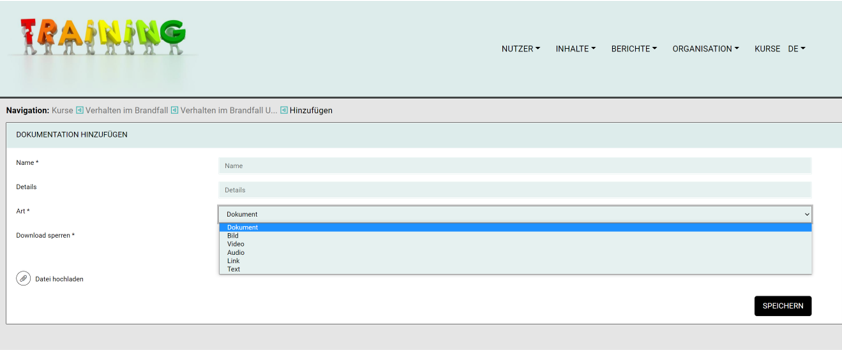
You can add documents to each chapter. You can either add these via drag-and-drop or upload them individually, whereby you have to select the document type when uploading. When you drag and drop, the software automatically sorts the various documents into their categories, which can still be edited as long as you are still inactive.
Links and text can be added using drag-and-drop.
Documents should not be too large so that download times do not take too long. We therefore recommend working with links for large files or if there are a lot of references and background information, for example to Wikipedia or other wikis. The same applies with large video files. The best way to do this is to upload it to YouTube and then make it available via a link, which also has the advantage that the player has already been tested for playing the video on all devices.
How do I add an explanation to the question?
An explanation of the question or an explanation of the answer should serve to provide the user with additional background information or case studies on this specific question in order to further improve the learning effect. These texts cannot be formatted and cannot be backed with images. Images can be attached to the questions, as well as videos or audio files
Why can't I save the explanation of the question or answer?
You cannot save the question and answer explanation if this option is not licensed.
Why do I get an error message when I try to save the question?
Error messages for answers that have been marked can, for example, come from the fact that you have marked several answers to a single choice question as correct or you have simply forgotten to mark answers to multiple choice questions.
What does the cell phone display mean on the question page?
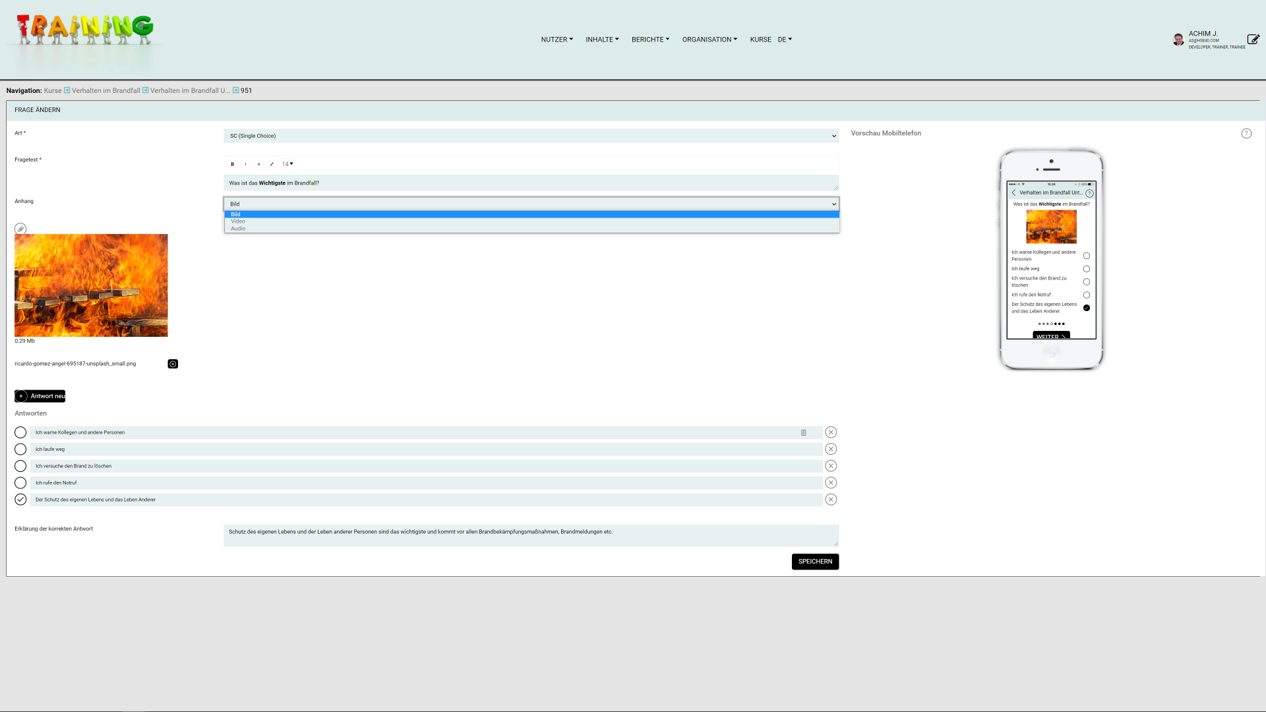
The mobile phone preview helps you to see how your question will appear to the learner on their mobile device, so that the course can be easily accessed and readable even on a small mobile phone. This preview is responsive and follows the input you make on the page.
How do I unlock questions, course content, or lessons in a course?
All questions and content, as well as lessons and trainings, must be switched from inactive to active status, which will give you the opportunity to do one last check.
It is necessary that you switch each individual question from inactive to active and also release the individual documents. Only then do you release the individual chapters on the course page.
Please note that you stick to this order: first questions, then documents, then lesson, then course. Once the training/chapter/document or question has been activated, you will not be able to edit individual documents or lessons.
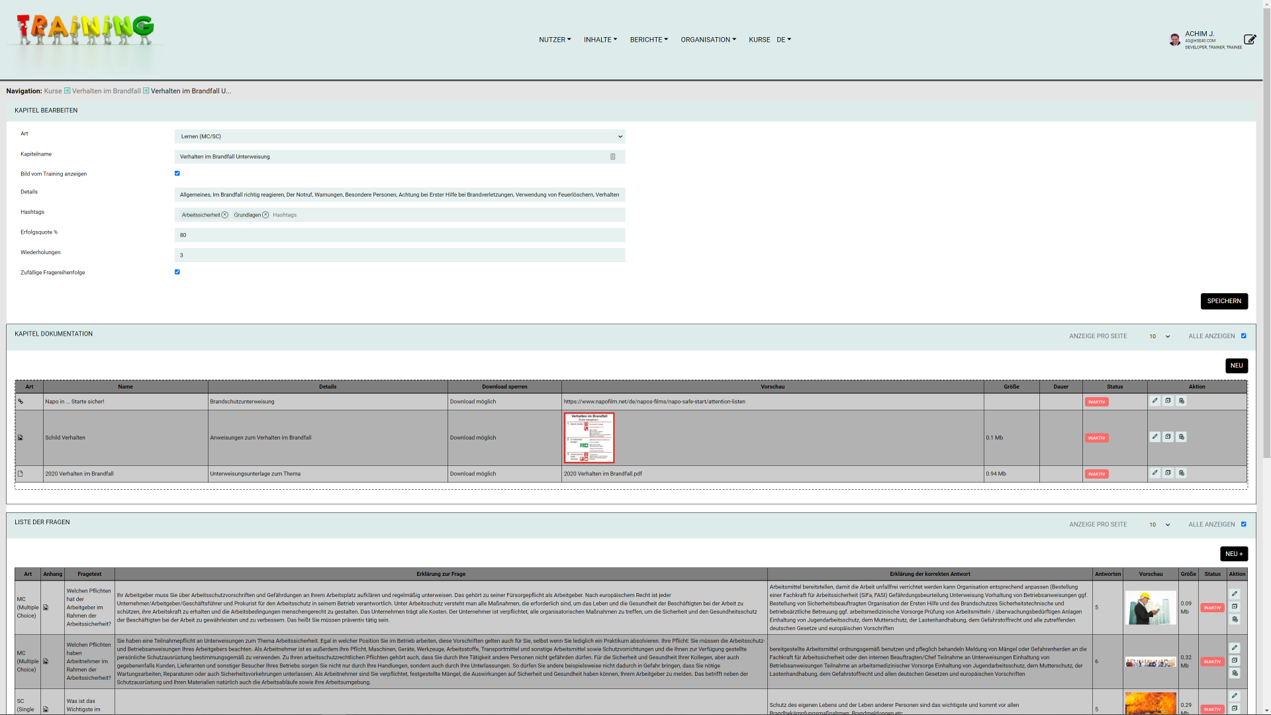
If it does happen, the only option you have is to duplicate that training/chapter/document or question and archive the erroneous item and repeat the process again.
Why can I no longer edit a question/chapter/training/document?
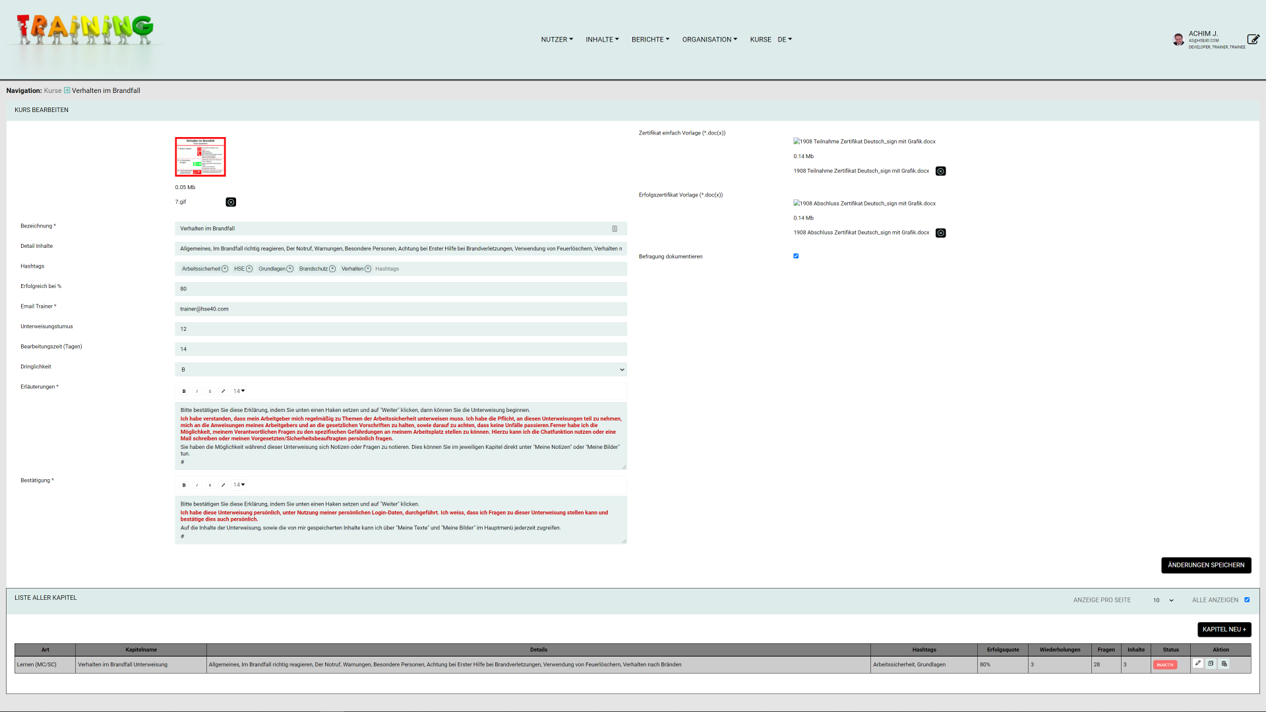
An element can only be edited as long as it has the status inactive.
Why can't I see a course or entire course packages for users?
This is often because the packages or user groups are still inactive.
Why do I no longer have access to the questions in a lesson?
If you have activated the lesson, you no longer have access to the content of this lesson, neither to the documents nor to the questions.
Why can I no longer edit a lesson?
If a lesson has the status active or archived, it can no longer be edited.
Training packages
How do I activate a training course for users?
In order to release training courses or training packages for users, it is necessary that individual short instructions are combined into training packages, which, for example, include work areas or activities or basics, so that these packages can then be assigned to individual users or user groups.
How do I create training packages?
You create training packages by creating a new training package, making the appropriate entries and then adding the corresponding individual training courses to this package. When you're done, you can add users or user groups. Please note that this too
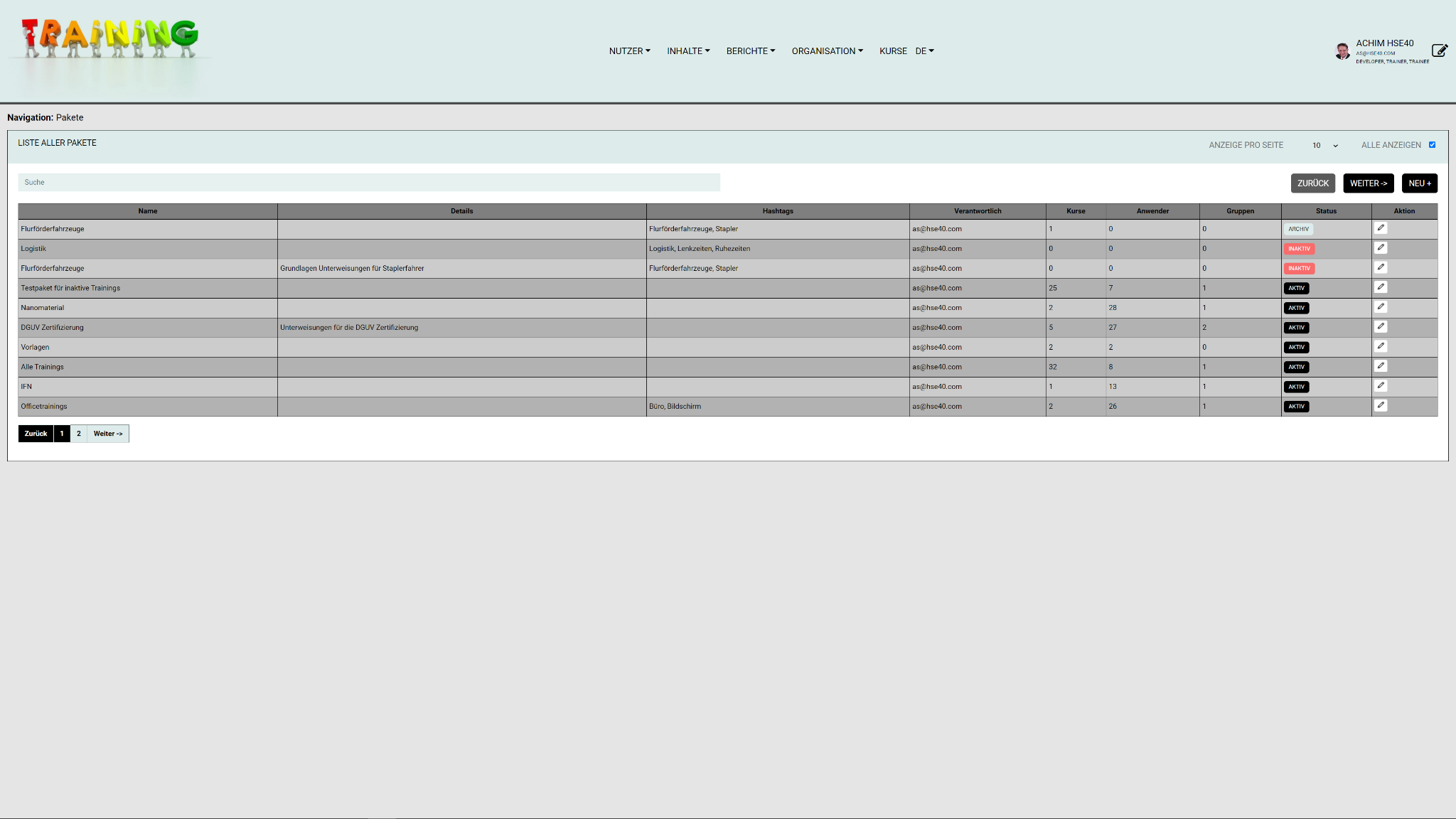
Training package must be changed from inactive to active status so that the training in this package can be released to users. You can then only switch from the active status to the archived status.
Please note that active training packages can also be edited at any time. The moment you set training packages to archived, the user assignment is lost and the trainings are no longer assigned to the users.
How do I add training to training packages?
You can add additional trainings or remove trainings to inactive or active training packages at any time. You can also archive trainings within these training packages or,
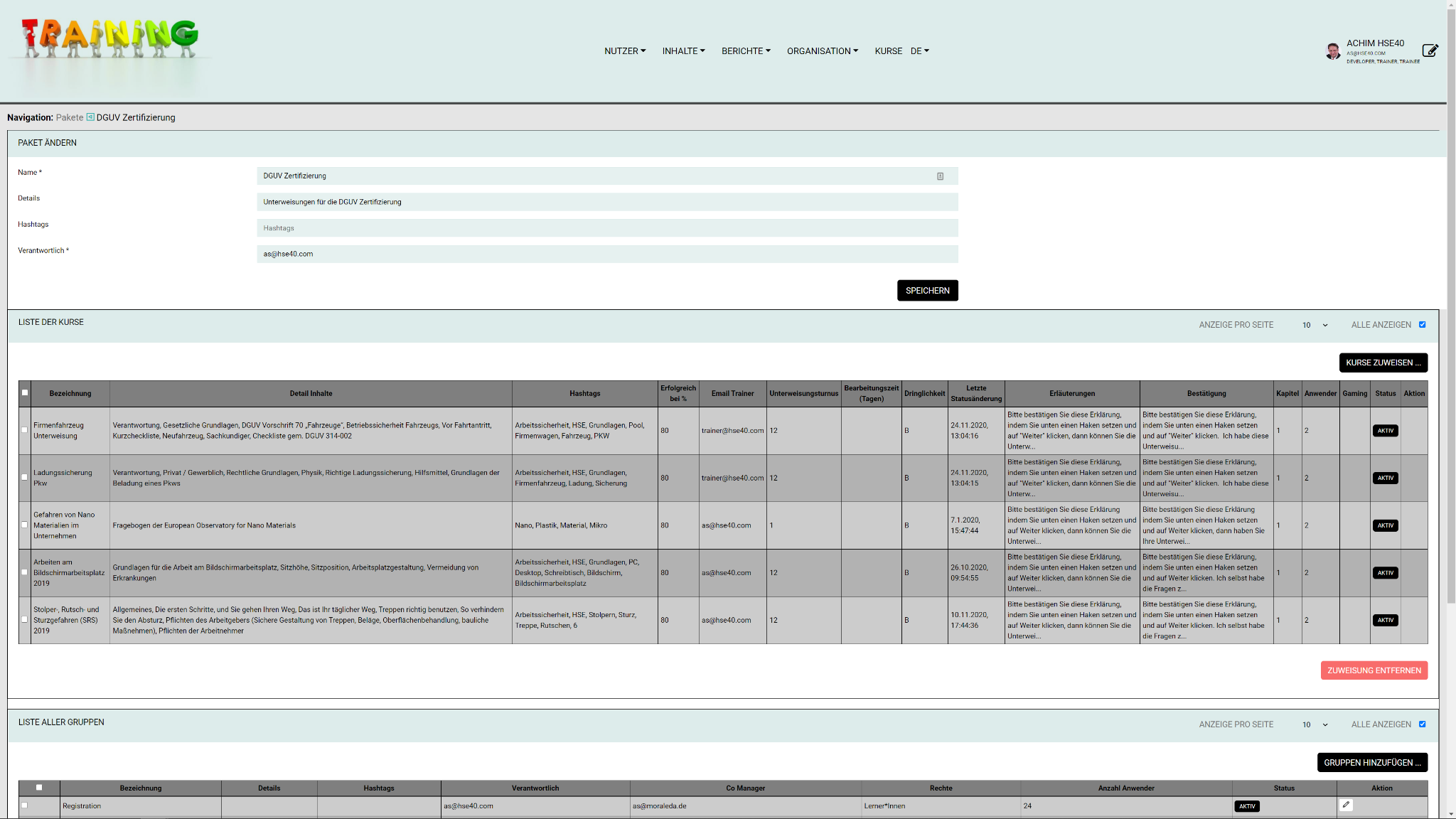
If these trainings are archived outside of the training packages, they are then automatically set to archived and can no longer be accessed by the user. You add trainings to training packages by selecting one or more trainings with a small check mark on the left in the list and then clicking the button to “Add training package”. You will receive a selection of training packages and click on the small plus to the right of the training package and you will receive a status message that these trainings have been added to the training package.
How do I add users to training packages?
You add users to training packages by editing the training package (click on the
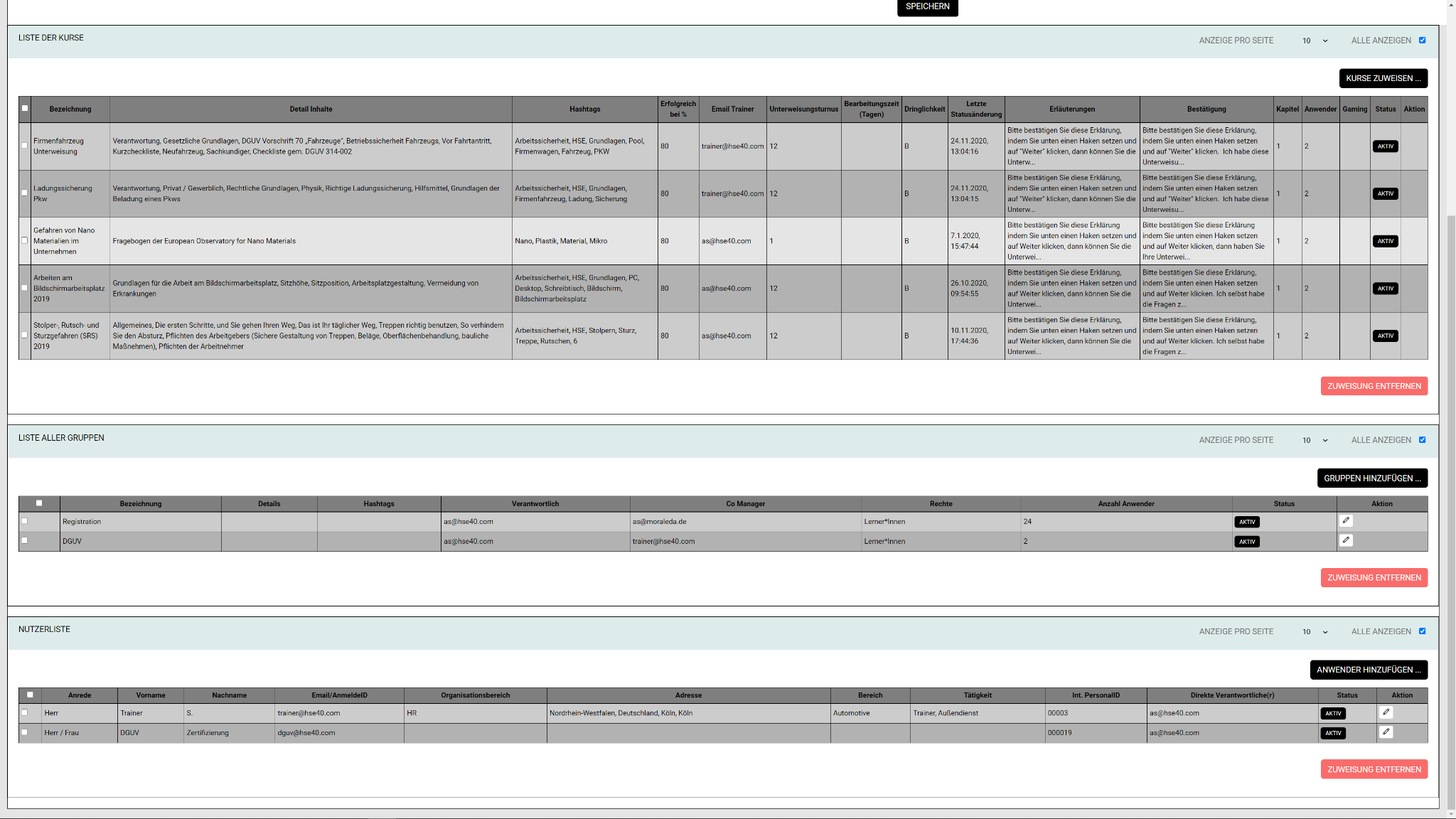
Pencil

to the right of the training package) and you will receive a list of which trainings are included in this training package, which groups are assigned and which users have been assigned to this training package. You can add courses, individual users or user groups at any time.
How do I add user groups to training packages?
See “Adding Users to Training Packages”
How do I change users or user groups in training packages?
You change users or user groups in training packages by either changing the user groups directly and the user groups by adding or deleting employees or users to groups, or if the general assignment changes, you can do so at any time even after calling up the training packages and Change the training packages for individual users and user groups, making changes that have a direct impact.
How do I import new training/courses?
You import new training courses by clicking on the “Import” button, selecting the corresponding ZIP file and clicking Open. The software automatically adds the new workout to the list of available workouts as an inactive workout. This means you can edit the training.
How do I export training?
You export single or multiple trainings by selecting these trainings and then clicking Export. The software automatically creates a ZIP file and saves it to the folder specified in the browser for downloads on the computer.
Can I edit ZIP files externally?
You can view the contents of the ZIP files, but as soon as you make any changes to the contents, you will receive an error message during import.
Can I rename ZIP files?
You can rename the ZIP files at any time for a better overview. However, the extension (file type) must remain unchanged.
How do I edit existing training courses?
You can edit trainings that have the status inactive at any time.
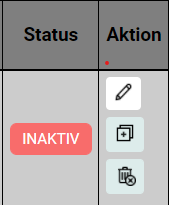
Active or archived training courses can no longer be edited. To edit these you can use an active or archived training
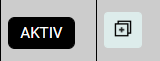
duplicate. This then appears in the training list as an inactive duplicate of the active or archived training and you can edit the training.
How do I archive training courses?
You archive training or courses by clicking on the “active” button.
The status then switches from active to archived and these trainings can no longer be accessed by users. Users currently working in this course can complete the course. However, this can no longer be seen in the list of completed courses.
How do I duplicate archived training?
You can duplicate archived training courses by clicking on the button on the right

Click “Duplicate”. The duplicate appears as a new training in the training list
Why can't I find training courses?
You can find archived training courses if you have the appropriate rights to display these training courses. You have to tick “all” at the top of the training list, then all available inactive, active and archived trainings will be displayed.
Content (only in the browser)
How do I get to the course page in the administration?
You can get to the page that lists all the courses that are on the platform by clicking on the Courses link in the header, which is located between Users and Reports.
Why is the page blank?
If you do not have trainer permissions, you will not be able to view courses on this site
How do I change the display of the course page?
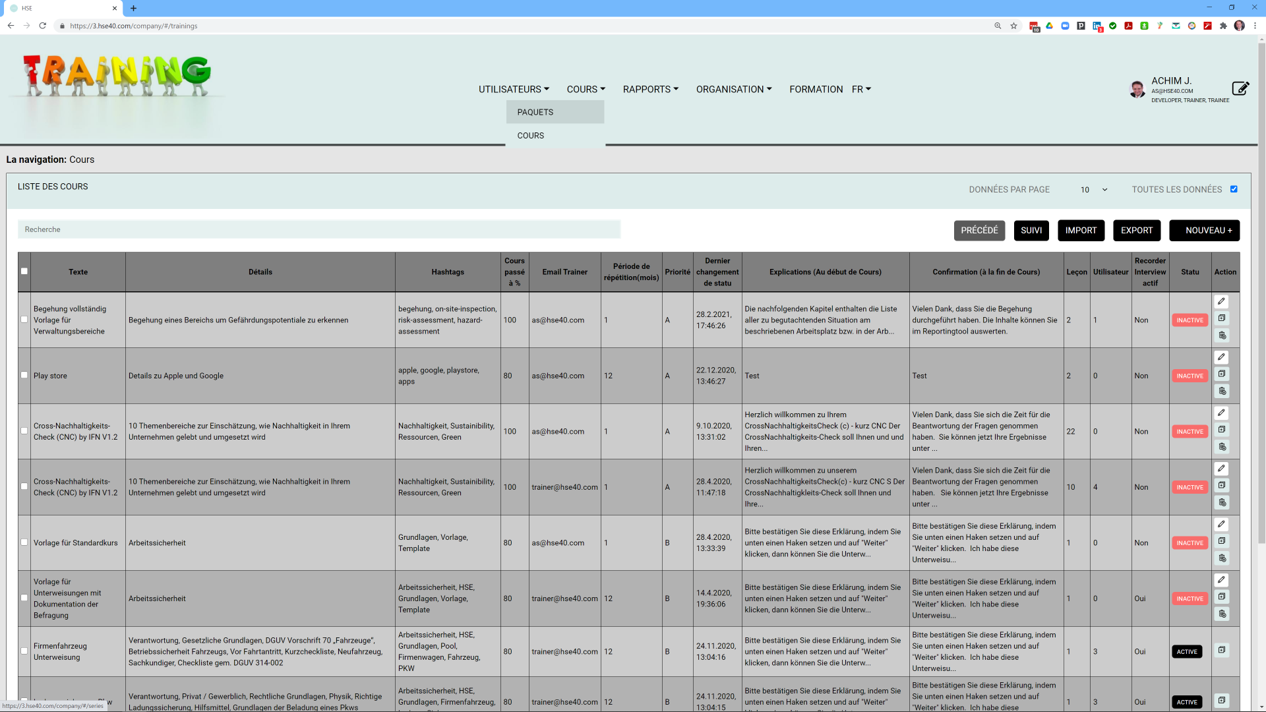
You can change the display on the course page above the list, for example by only displaying active courses or changing the number per page. Both are done at the top right, as is scrolling through several pages. You can find quick navigation with direct selection of pages at the end of the list.
Why are some courses or users not displayed?
If some course content or users are not displayed, this is often because the check mark in the top right is missing. Check this box and all users and all content will be displayed
How do I change the number of courses or users displayed?
You can change the number of courses displayed or the number of users displayed per page in the drop-down menu at the top right, in which you can select the number of users or courses per page.
How do I create a new course?
You can create a new course by clicking on the “Add Course” or “New Course” button. The courses are structured analogous to books, that is, there is a front page with a title and picture and a back page with the confirmations, which the learner receives as free text, as well as a spine, a table of contents and parameters on how this book should be “read”. In the opening statement, the foreword or the final statement, the epilogue you can, for example, inform the users about the objectives of this course or, as with courses on occupational safety or data protection, inform them about their legal rights and obligations. The final declaration is often used to ensure that users confirm that they have edited this content independently and used their login and password. Just like with a book, you can now add chapters to the end of this page. Before you do this, please save the settings of this course and reopen the course before adding the 1st chapter.
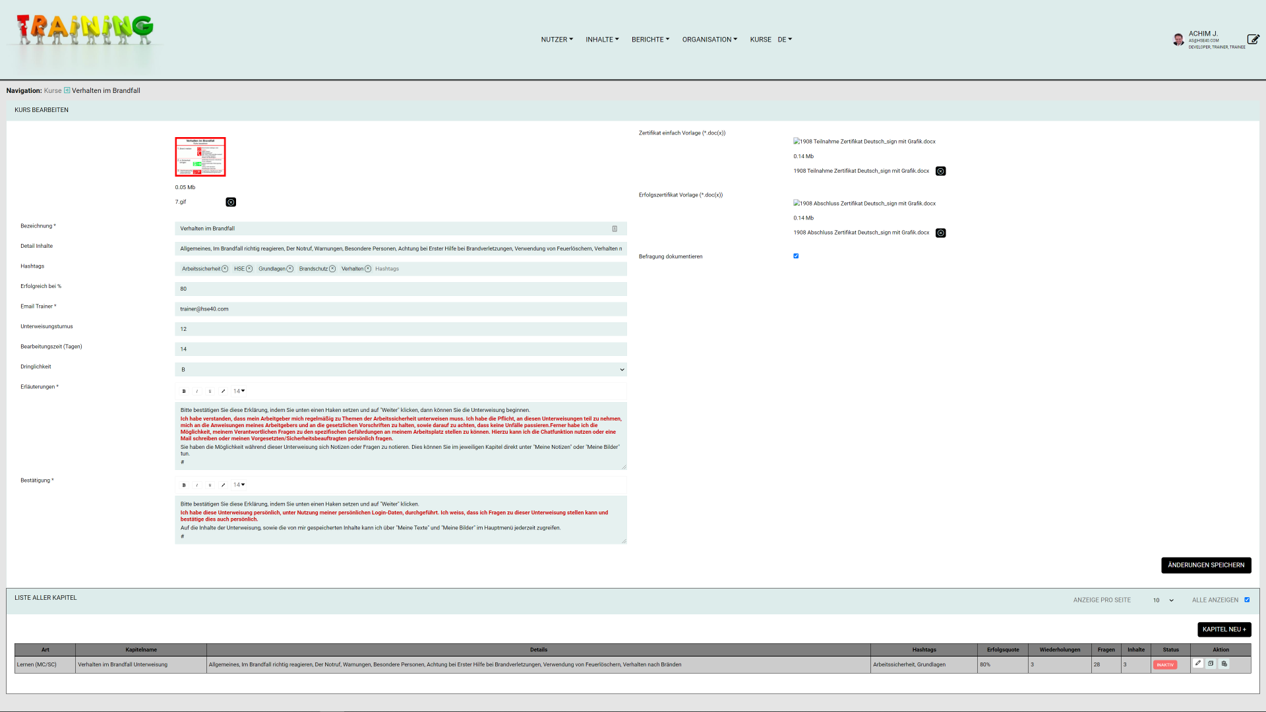
How do I add or edit chapters?
Chapters that you can add differ in chapters for learning, chapters for testing or chapters with free text or survey (poll) answers. Each chapter form contains questions as well as documents related to the topic. Create a new chapter and select the shape of the chapter. Please type the name for the chapter. In the next line you can enter the content of the chapter as information for the users. You also often need this information for the certificates in order to describe the training or course content. Your tags allow you, for example, user groups or other short information that will help you later assign courses or course packages. The percentage indicates how many questions the user must answer correctly in this chapter for this chapter to be considered successfully completed. You can also specify whether the cover photo of the training will also be used as the cover photo for this chapter or, if the option is activated, you can choose whether a random order of the questions is selected by the software. There are different types of chapters:
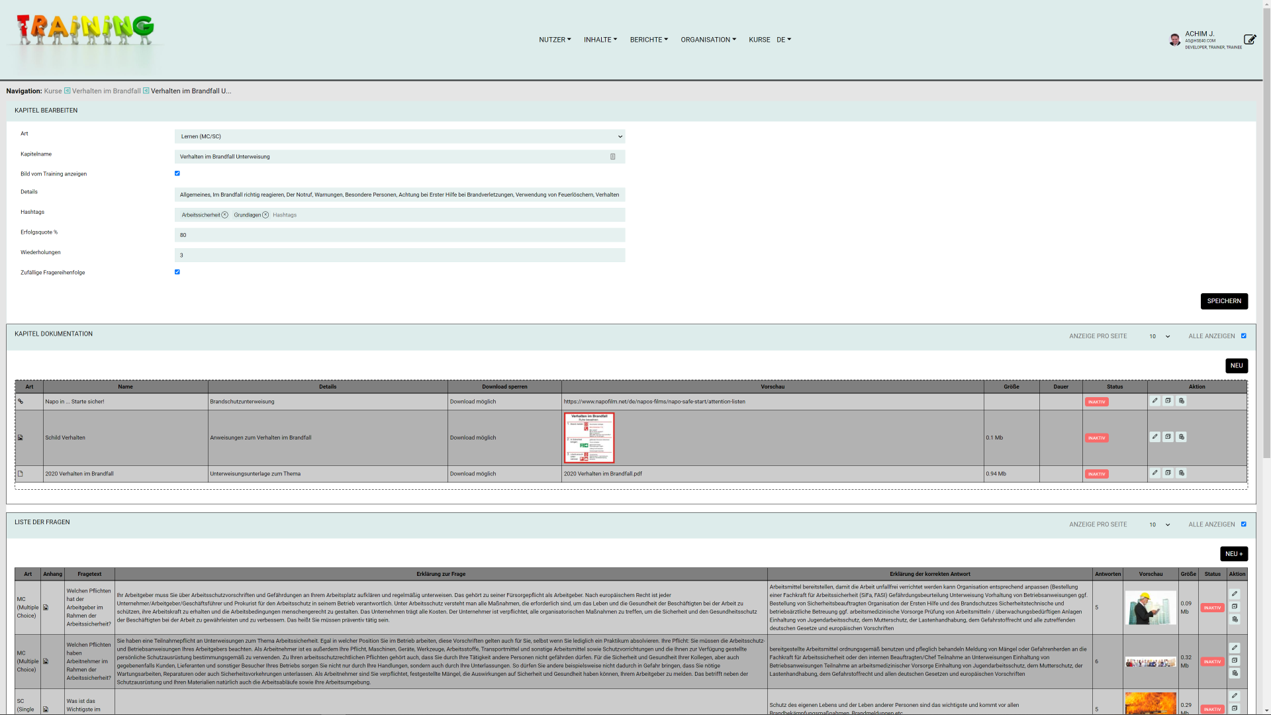
Learning chapters allow you to add single choice (SC) and multiple choice (MC) questions, which require you to specify which answer options are correct for each question. The only difference between learning and test chapters is that in the learning chapter the user receives feedback after answering each question as to whether they answered the question correctly or incorrectly. In test chapters, the user only receives this feedback after all questions have been answered. Free text chapters can contain free text questions / survey questions that do not contain right or wrong answers. For free text questions, the user enters their answer in free text, which can then be edited accordingly by a manager. For poll/survey questions, the user enters their assessment of a question. For example, from very good to bad.
How do I export a course?
You select the content to export by ticking it on the left. With the “Export” button, the software generates a ZIP file and automatically saves it in your downloads folder.
You can then re-import this ZIP file onto other platforms, for example. When exporting several courses into a ZIP file, please note that only one ZIP file is generated when exporting several courses.Please note that this ZIP file may not be changed; it cannot be edited externally. The file name can be changed, but the format must be maintained.
How do I import a course?
To import a course, click on “Import” and select the ZIP file to import, which will then automatically be imported into the training list as an inactive training.
What elements are there in a new course?
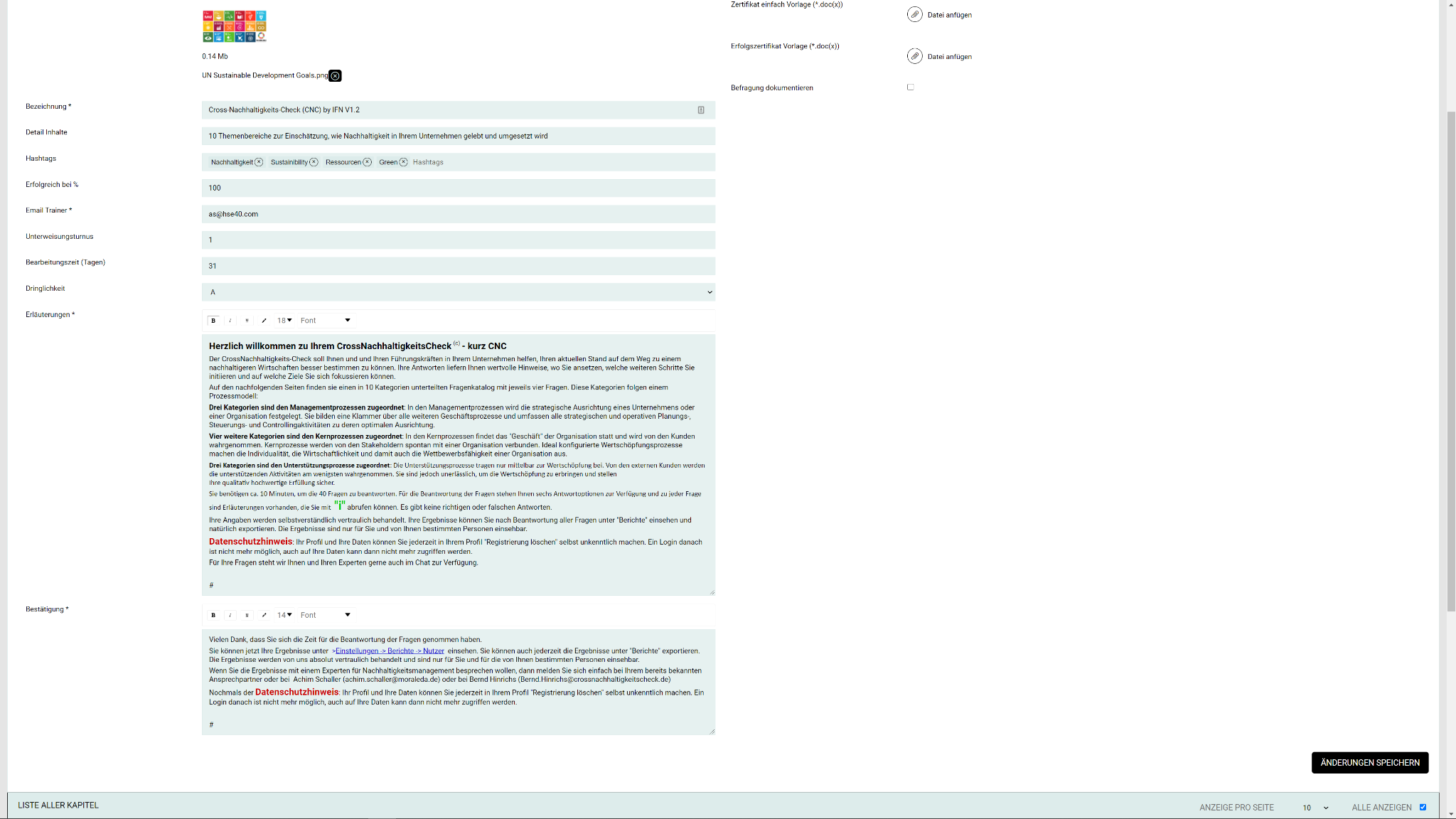
The variables you can set for each training or course are:
Name des Trainings
Content of the training (which will later be issued on the certificates)
Tags to make it easier to find the training and to make it easier to combine training that includes the same locations or the same activities or basic training into training packages
What percentage of all questions included in this training must be answered correctly for the training to be considered successfully completed
Cover image (when uploading, please make sure that the image is not too large, ideally smaller than 500 KB so that the content does not take too long to load for users
Percentage, i.e. what percentage of all questions must be answered correctly for the training to be considered successfully completed
Trainer / creator of the course based on the existing trainers, please note that external trainers must first be created (registered) in the portal and receive trainer rights (see also user management and user groups)
After the trainer, you set the instruction cycle in months, i.e. after how many months this instruction will automatically be repeated. If this instruction is never to be repeated, i.e. it is activated once for the user, you can set the instruction cycle to the maximum value of 256 months, i.e. the training is repeated in 21 years and 4 months. If you want to make this course available to users frequently, you can play with the instruction cycle and the processing time below. For example, a training cycle of one month and a processing time of more than 30 days means that a training course is released to the assigned users very quickly after completion.
The urgency determines where this instruction appears in the ad in the app or on the web. A workouts are displayed first, followed by B workouts and followed by C workouts. How exactly you set your priorities internally is up to you.
Starting declaration at the beginning of the training as well as final declaration, which you can create as formatted text. Various formatting options are available to you, including different fonts and the small pen

sets the font color and the background color of the font, if you want to delete the background color then click on the pen

select Highlights and scroll to the end of the tiles, the white tile is a little hidden at the bottom. You can repeat the whole thing for the final declaration. There is no possibility of hiding these explanations, which is why our tip uses the explanations not only for information about rights and obligations but also for goals and information that should be passed on in this course. Even in the final declaration, you are not bound to ask the user to confirm that they have completed this course independently using their login data. You can also write a very nice farewell and a thank you with a note about who to contact if you have any questions about this content can.
2 certificates, a certificate as a simple template is issued if the user does not meet the minimum requirement of correctly answered questions. The success certificate is issued if the user meets or exceeds this minimum requirement.
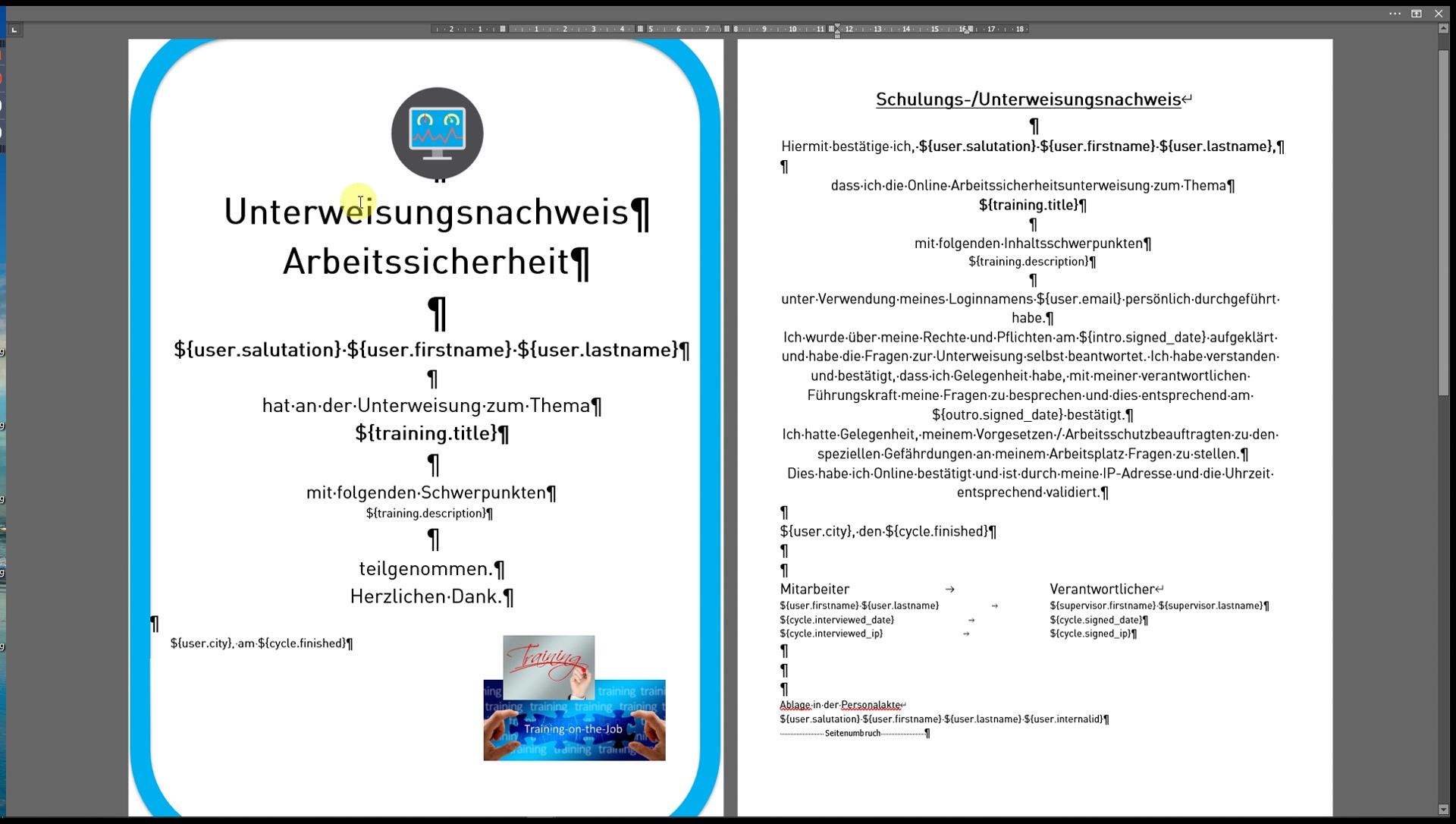
Both certificates are Microsoft Word templates with corresponding database fields, which are used when creating them in the software. You can find out how to create certificates here. Certificates Lastly, you decide whether this course legally requires a survey, which must be documented. If the survey has to be documented or if a survey has to be documented, it is necessary to tick the last box.
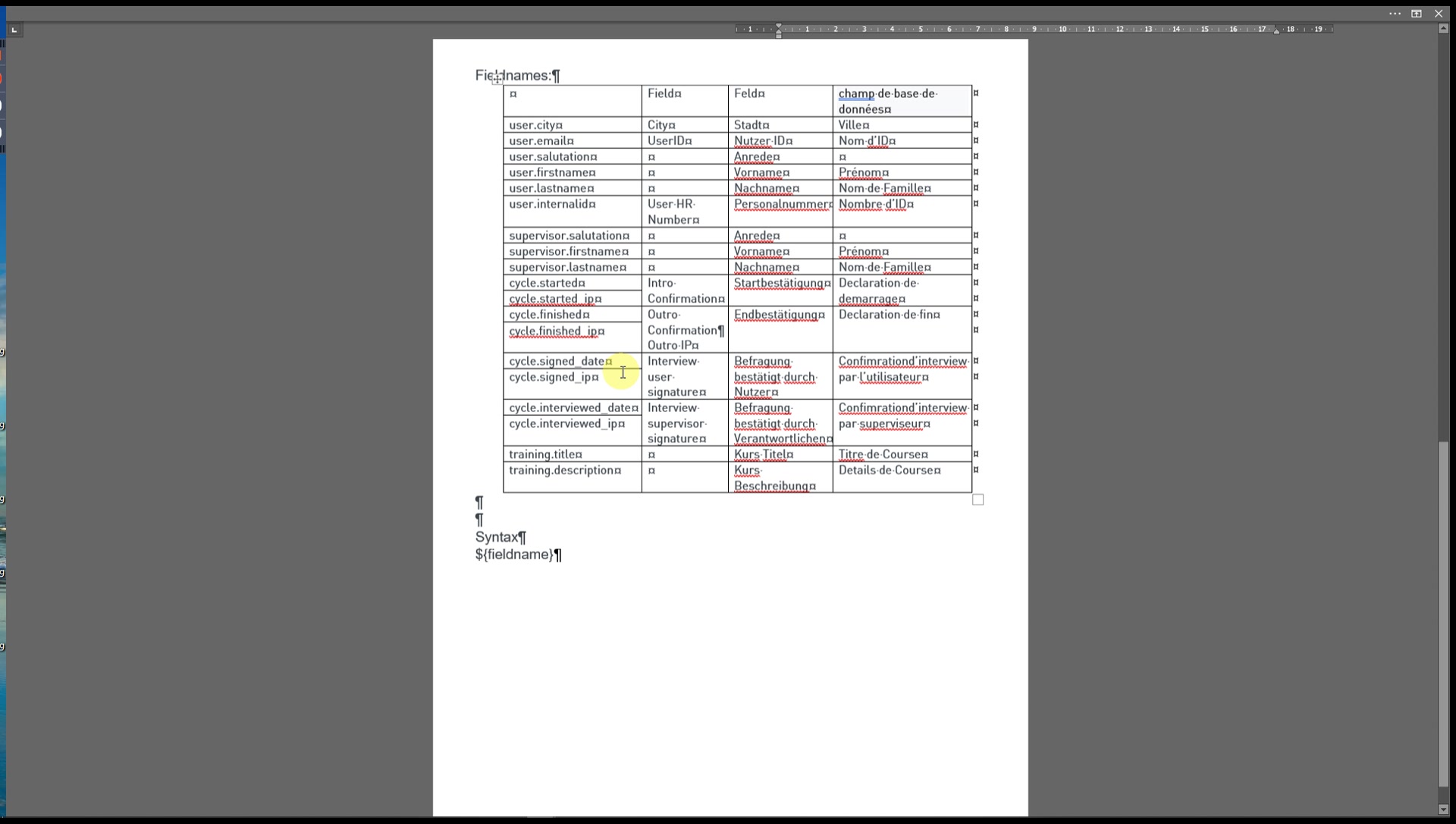
Important: Please save your entries and reopen the course to edit the chapters.
How do I create a certificate or certificate template?
You can create certificates as a document in MS Word. In this Word document you can also use graphics and borders that Word offers. Please make sure that when you set the database fields, you have in mind how much text can be contained in a database field so that the certificate can be output cleanly and legibly. You can find out how to use Word in the corresponding Microsoft tutorials.
Which fields can I use in a certificate?
You can find the fields that you can use in a certificate on page 3 of our sample certificate (Download).
How do I create multi-page certificates?
You can also create multi-page certificates in Word. You can also use fields multiple times in different positions, so that, for example, you have one page for the user and a second page with the same instructions for the HR department or boss to sign.
What do opening declaration and closing declaration mean?
Entry and closing explanation are 2 text fields, both of which can be defined when creating a training or of course can also be changed when editing a created training. The initial declaration is displayed when the user opens the course and before the user can access the content and questions, they are asked to read this declaration and confirm that they have read and understood it. You can use any text, including very friendly welcome messages, asking you to tick the box below and then click “Continue” to unlock the content.
After processing all content and completing all chapters, the final statement comes in which you can, for example, thank the user, point out that they have further options, give them a contact person or, as with instructions, ask the learner to confirm that he has edited the content independently and that the use of his personal login data ensures a certain level of legal security. After confirming the final declaration, the certificate is created automatically and the user can download it.
In the case of legal instruction or training, the confirmations regarding the conversation in the form of a date-time stamp including IP addresses will be used as a digital signature on the certificate.
How do I change formats in the initial and final declaration?
Both windows are text windows in which the text can be formatted. You can choose font, you can highlight the font with bold, italic or underlined, you can with the small pencil

set the font color and the background of the font. Font size and font can also be adjusted. A tip: You can also format these texts, for example in Word, and then copy them formatted into these text fields. The formatting is often included and this means you can also insert links.
How do I create links in the declaration?
You can create links in the explanations by creating the texts in an external text editor in which you can create links, for example Microsoft Word, and then inserting them into these fields as formatted text.
How do I upload certificates?
To upload certificates, click on the circle with the staple. A window will open and you can select the corresponding Word file in the appropriate format. You will receive a template to create certificateshere.
What is the difference between a certificate and a certificate of completion?
The difference between a normal certificate and a completion or success certificate is that if the user has met the minimum requirement of correctly answered questions, the completion certificate is automatically generated. If the user has not met these requirements, the simple certificate is generated. You also have the option of only uploading one certificate, so that if the user does not meet the minimum requirements, they will not receive a certificate.
What does questioning mean?
For many legal training courses, such as occupational safety, data protection or compliance training, the law often stipulates that the employee can ask specific questions about the topic after the training has been completed. Often the employee's manager is the contact person for such cases, so both confirm that this conversation took place, even if no questions were asked. The legislature stipulates that there must be an opportunity to ask questions.
What does new chapter mean?
Our courses are structured analogously to books, which means there is a front with a title and a picture and an author and inside there is a short synopsis. There is a back of the book where the title is written shortly afterwards and maybe a few topics about what it is about is possible, and on the back we have further information about the contents of the book.
And like every book, our courses also contain chapters. Each course must contain at least one chapter. A chapter has a heading, a title, a short synopsis and a few tags. Another chapter consists of documents that are made available to the user so that they can familiarize themselves with the topic.
How can I track whether a user is working through the documentation?
There is no provision for tracking the extent to which the user views the documents, videos, listens to podcasts or uses the links.
How can I protect documents?
Documents can be marked as private, which means they cannot be downloaded or shared in the app. However, due to Windows, these documents can only be viewed in our app; they are blocked in the browser.
Why is there another percentage in a chapter?
Chapters also contain questions. You can find out which question types can be used under the keyword questions and question types. At the same time, you can specify whether you want to use the cover image of the book for the chapter, what percentage of the questions have to be answered correctly so that the chapter can be considered successfully completed, and the option of whether you want to ask these questions randomly or not and how often the user can be given the opportunity to answer the questions again.
Why is there another percentage in a chapter?
In a chapter with open questions, there are no questions to answer right or wrong, so the percentage is hidden.
The chapter is completed with all questions answered and cannot be repeated!
How do I create a new chapter?
You create a new chapter by adding a chapter to the home page of a training that you are currently creating or editing. The button for this is located above the chapter list
What types of chapters are there?
The types of chapters that we distinguish today are learning chapters / test chapters or “open questions” with surveys (poll questions) and free text questions. For more information, please read the details on the different chapter types
What is a learning chapter?
A learning chapter consists of documentation, as well as single and multiple choice questions to which the correct answers must be given. After each question, the learner receives feedback as to whether the question was answered correctly or incorrectly.
What is a test chapter?
In a test chapter, the user only receives feedback on how many of the questions were answered correctly after all questions have been answered.
There is also no feedback as to which answers were right or wrong.
What is an “Open Questions” chapter?
For “open questions” we work with free text or survey (poll) question types. There is no preset right or wrong here. The user enters his answer as free text or, in the case of poll questions, he gives his rating accordingly, and this is sent to the person who is evaluating the course.
Why is there another additional percentage in the chapter?
A training has a percentage that refers to all questions from all chapters that are in this training. A chapter also has a percentage number, which only relates to the questions that are in this chapter. Therefore, training and chapter 2 have different percentages
Why can't I save the random generator hook?
You cannot save the random generator hook if this option is unlicensed.
Which image is displayed as a chapter image?
The image of the training will be displayed as a chapter image if you check this box
How do I create a new question?
You create a new question by either duplicating an existing question and saving it - you'll find the little features to the right of the question - or adding and saving a new question.
Why can't I select multiple choice or single choice questions?
If you have set a free text chapter / poll chapter as the chapter type, then you can only use free text and poll questions, as these cannot be mixed with multiple and single choice questions in order to be able to carry out an evaluation accordingly
Why can't I select poll questions or free text questions?
You cannot select poll questions or free text questions if you have selected a learning or test chapter as the chapter type.
How do I format the question text?
Above the question text there are corresponding formats with which you can set the font size, font, font color and background accordingly. You can see how the whole thing will be played back on a mobile phone in the preview image when you edit the question.
How do I add an image, video or audio file to a question?
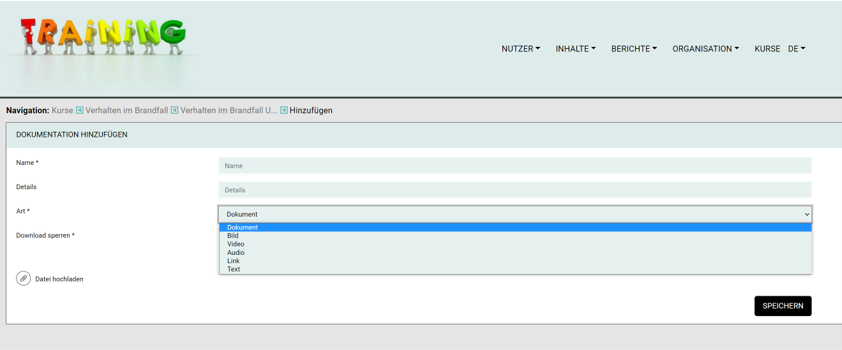
You can add documents to each chapter. You can either add these via drag-and-drop or upload them individually, whereby you have to select the document type when uploading. When you drag and drop, the software automatically sorts the various documents into their categories, which can still be edited as long as you are still inactive.
Links and text can be added using drag-and-drop.
Documents should not be too large so that download times do not take too long. We therefore recommend working with links for large files or if there are a lot of references and background information, for example to Wikipedia or other wikis. The same applies with large video files. The best way to do this is to upload it to YouTube and then make it available via a link, which also has the advantage that the player has already been tested for playing the video on all devices.
How do I add an explanation to the question?
An explanation of the question or an explanation of the answer should serve to provide the user with additional background information or case studies on this specific question in order to further improve the learning effect. These texts cannot be formatted and cannot be backed with images. Images can be attached to the questions, as well as videos or audio files
Why can't I save the explanation of the question or answer?
You cannot save the question and answer explanation if this option is not licensed.
Why do I get an error message when I try to save the question?
Error messages for answers that have been marked can, for example, come from the fact that you have marked several answers to a single choice question as correct or you have simply forgotten to mark answers to multiple choice questions.
What does the cell phone display mean on the question page?
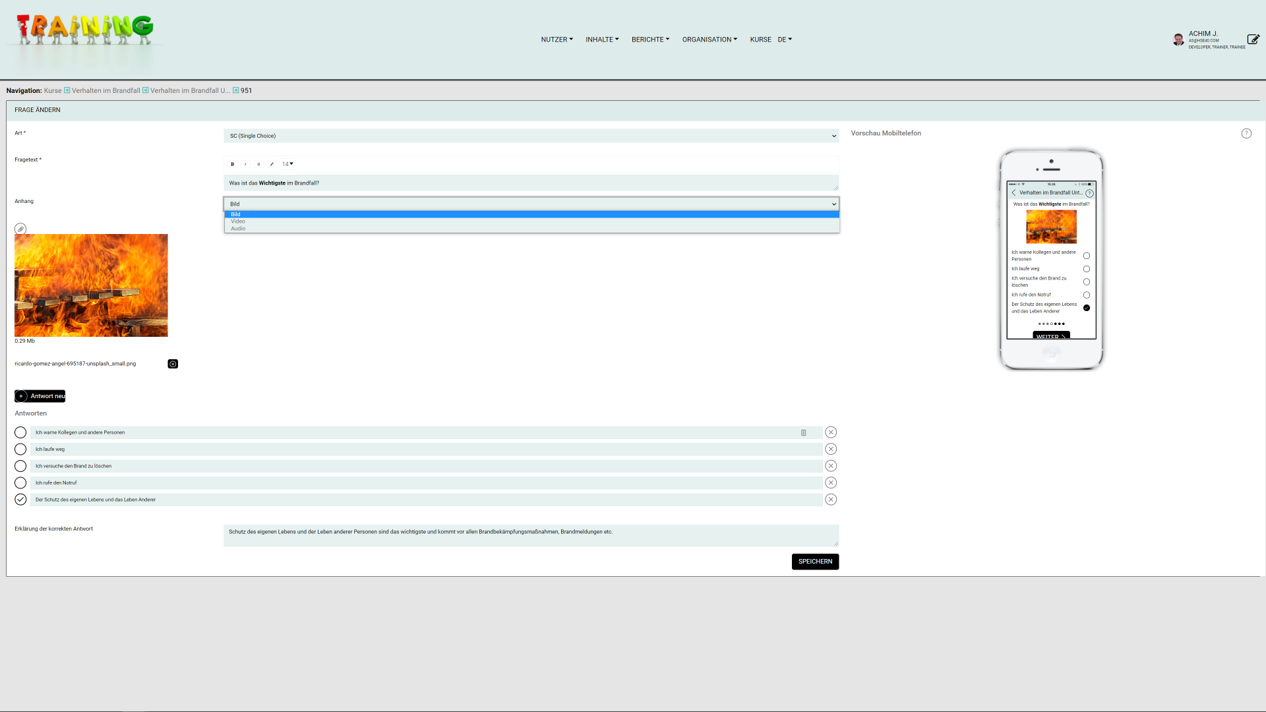
The mobile phone preview helps you to see how your question will appear to the learner on their mobile device, so that the course can be easily accessed and readable even on a small mobile phone. This preview is responsive and follows the input you make on the page.
How do I unlock questions, course content, or lessons in a course?
All questions and content, as well as lessons and trainings, must be switched from inactive to active status, which will give you the opportunity to do one last check.
It is necessary that you switch each individual question from inactive to active and also release the individual documents. Only then do you release the individual chapters on the course page.
Please note that you stick to this order: first questions, then documents, then lesson, then course. Once the training/chapter/document or question has been activated, you will not be able to edit individual documents or lessons.
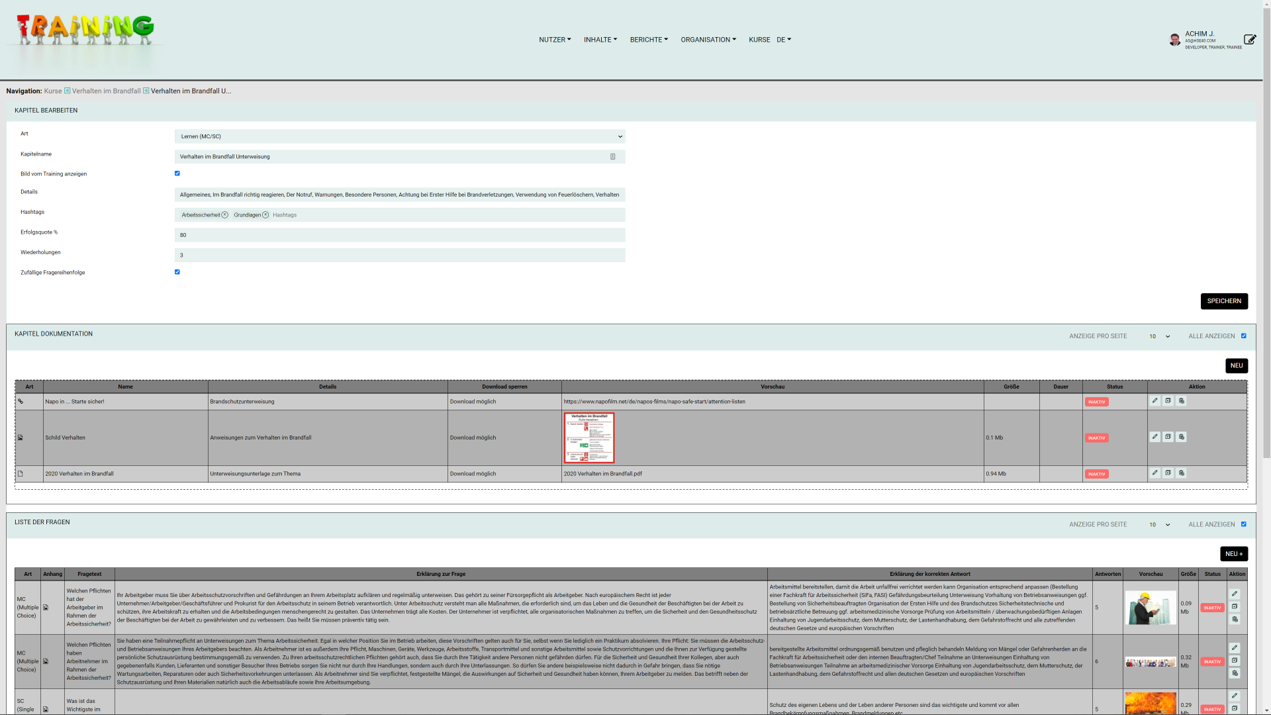
If it does happen, the only option you have is to duplicate that training/chapter/document or question and archive the erroneous item and repeat the process again.
Why can I no longer edit a question/chapter/training/document?
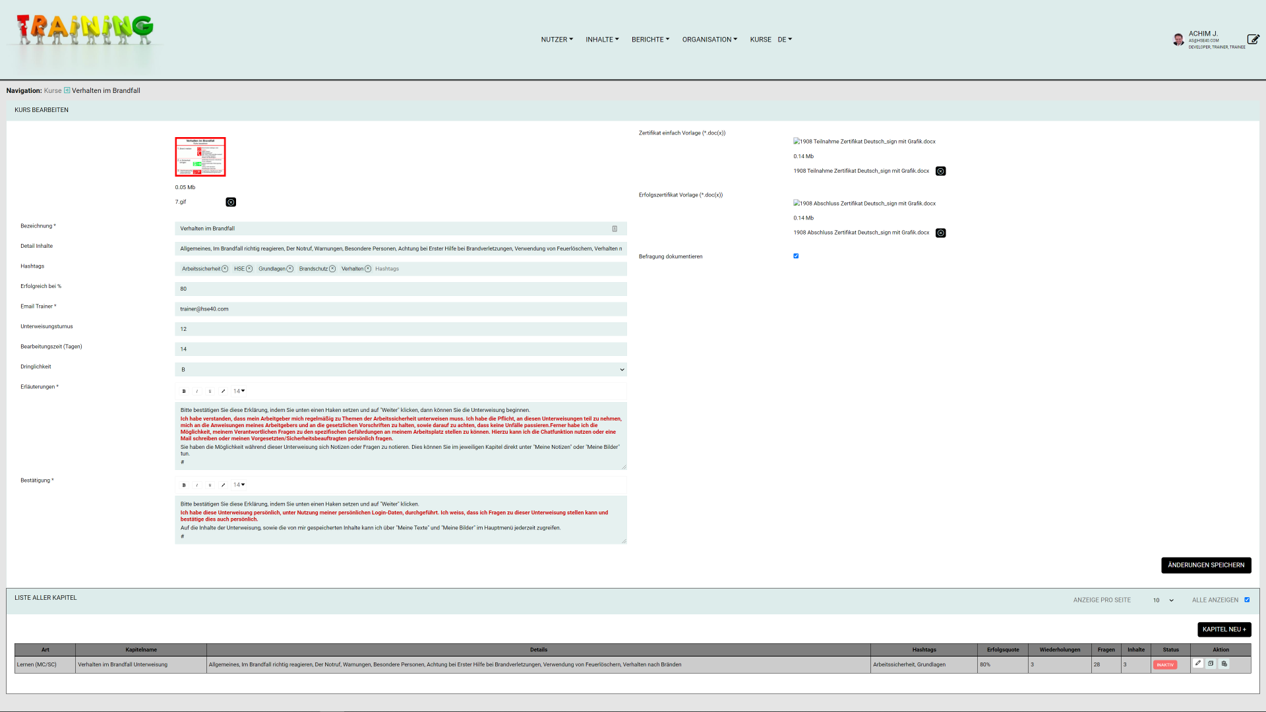
An element can only be edited as long as it has the status inactive.
Why can't I see a course or entire course packages for users?
This is often because the packages or user groups are still inactive.
Why do I no longer have access to the questions in a lesson?
If you have activated the lesson, you no longer have access to the content of this lesson, neither to the documents nor to the questions.
Why can I no longer edit a lesson?
If a lesson has the status active or archived, it can no longer be edited.
Training packages
How do I activate a training course for users?
In order to release training courses or training packages for users, it is necessary that individual short instructions are combined into training packages, which, for example, include work areas or activities or basics, so that these packages can then be assigned to individual users or user groups.
How do I create training packages?
You create training packages by creating a new training package, making the appropriate entries and then adding the corresponding individual training courses to this package. When you're done, you can add users or user groups. Please note that this too
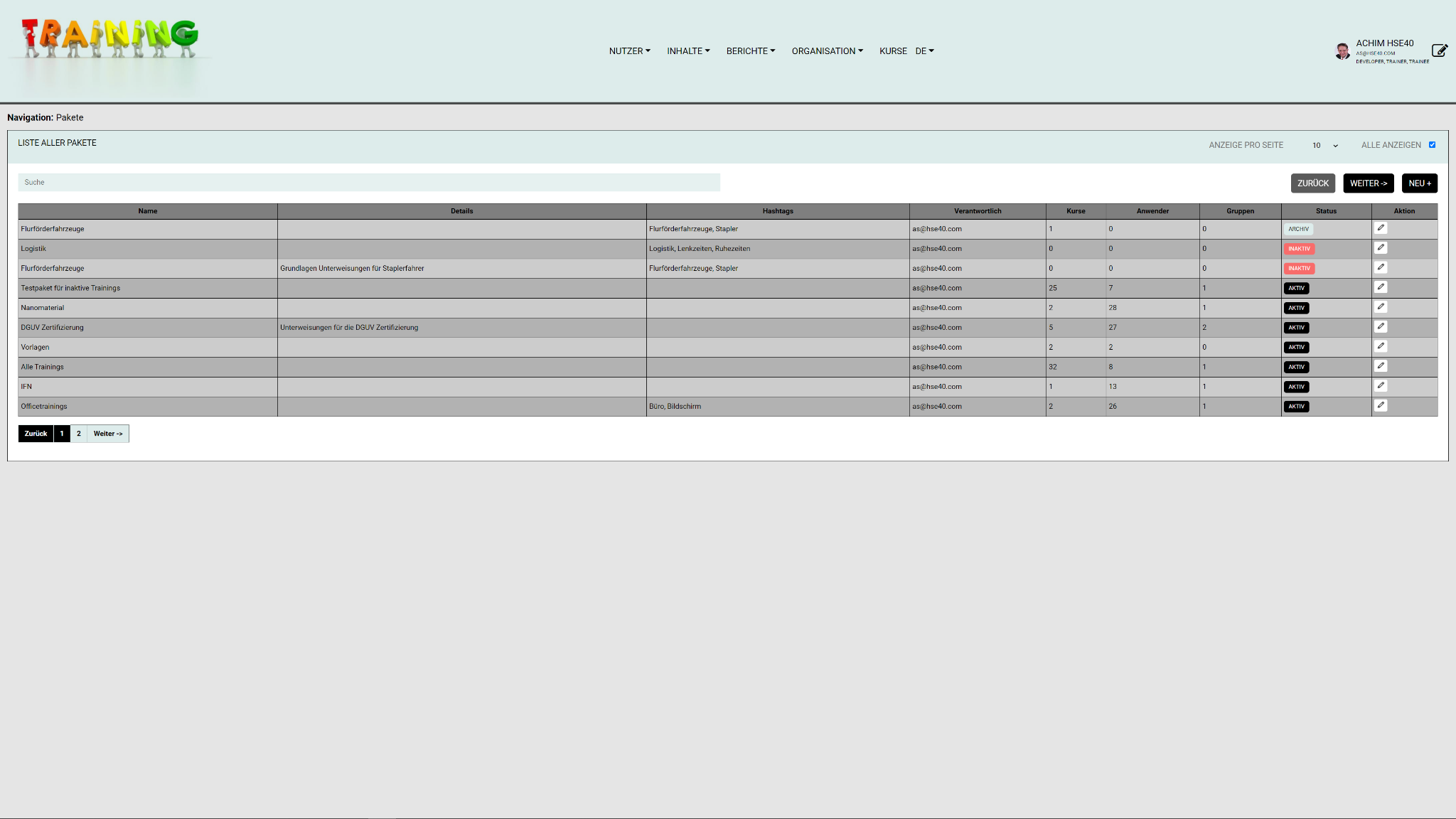
Training package must be changed from inactive to active status so that the training in this package can be released to users. You can then only switch from the active status to the archived status.
Please note that active training packages can also be edited at any time. The moment you set training packages to archived, the user assignment is lost and the trainings are no longer assigned to the users.
How do I add training to training packages?
You can add additional trainings or remove trainings to inactive or active training packages at any time. You can also archive trainings within these training packages or,
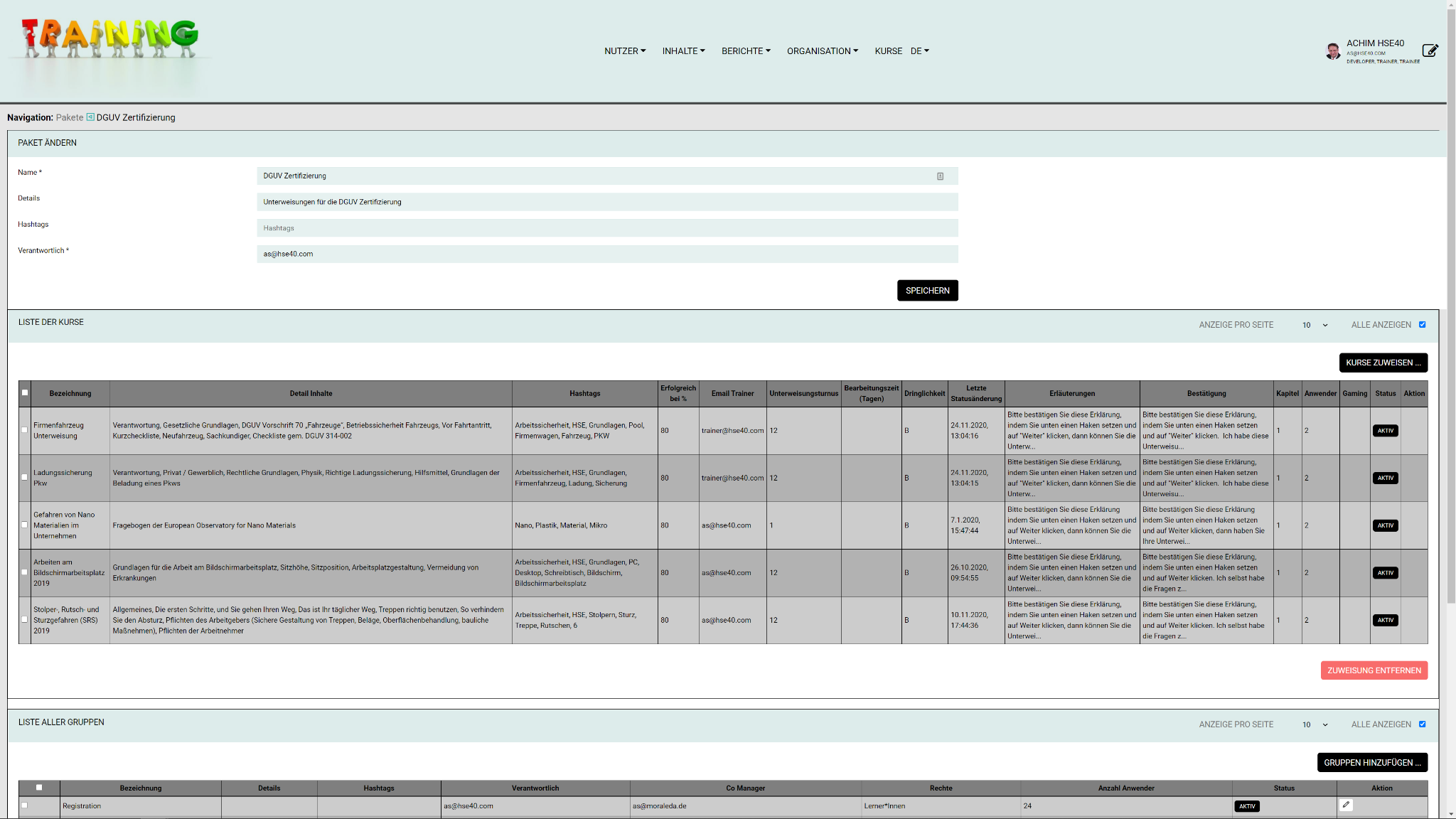
If these trainings are archived outside of the training packages, they are then automatically set to archived and can no longer be accessed by the user. You add trainings to training packages by selecting one or more trainings with a small check mark on the left in the list and then clicking the button to “Add training package”. You will receive a selection of training packages and click on the small plus to the right of the training package and you will receive a status message that these trainings have been added to the training package.
How do I add users to training packages?
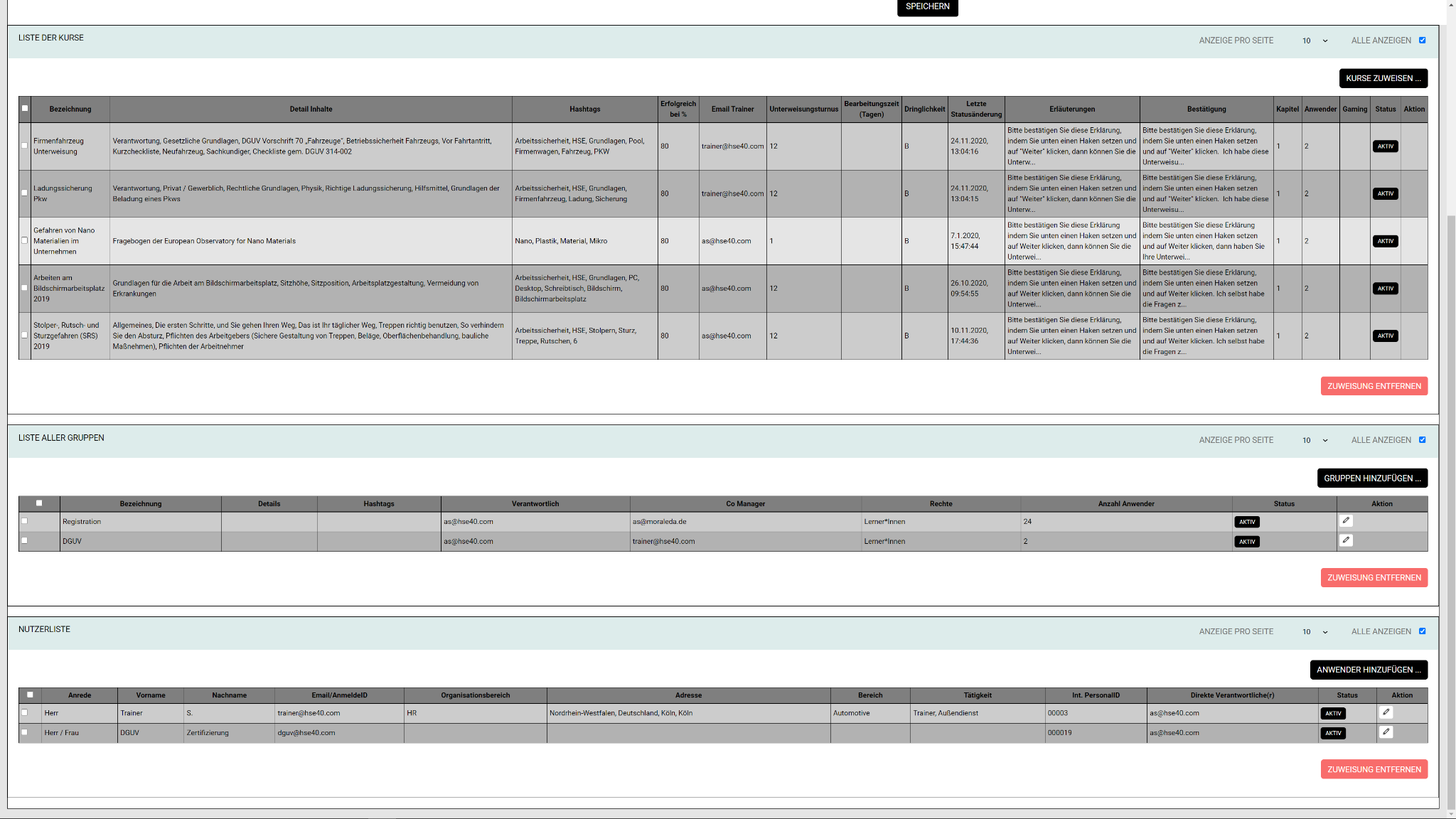
You add users to training packages by editing the training package (click on the
Pencil

to the right of the training package) and you will receive a list of which trainings are included in this training package, which groups are assigned and which users have been assigned to this training package. You can add courses, individual users or user groups at any time.
How do I add user groups to training packages?
See “Adding Users to Training Packages”
How do I change users or user groups in training packages?
You change users or user groups in training packages by either changing the user groups directly and the user groups by adding or deleting employees or users to groups, or if the general assignment changes, you can do so at any time even after calling up the training packages and Change the training packages for individual users and user groups, making changes that have a direct impact.
How do I import new training/courses?
You import new training courses by clicking on the “Import” button, selecting the corresponding ZIP file and clicking Open. The software automatically adds the new workout to the list of available workouts as an inactive workout. This means you can edit the training.
How do I export training?
You export single or multiple trainings by selecting these trainings and then clicking Export. The software automatically creates a ZIP file and saves it to the folder specified in the browser for downloads on the computer.
Can I edit ZIP files externally?
You can view the contents of the ZIP files, but as soon as you make any changes to the contents, you will receive an error message during import.
Can I rename ZIP files?
You can rename the ZIP files at any time for a better overview. However, the extension (file type) must remain unchanged.
How do I edit existing training courses?
You can edit trainings that have the status inactive at any time.
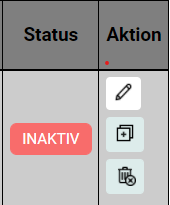
Active or archived training courses can no longer be edited. To edit these you can use an active or archived training
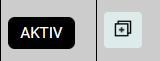
duplicate. This then appears in the training list as an inactive duplicate of the active or archived training and you can edit the training.
How do I archive training courses?
You archive training or courses by clicking on the “active” button.
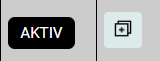
The status then switches from active to archived and these trainings can no longer be accessed by users. Users currently working in this course can complete the course. However, this can no longer be seen in the list of completed courses.
How do I duplicate archived training?
You can duplicate archived training courses by clicking on the button on the right

Click “Duplicate”. The duplicate appears as a new training in the training list
Why can't I find training courses?
You can find archived training courses if you have the appropriate rights to display these training courses. You have to tick “all” at the top of the training list, then all available inactive, active and archived trainings will be displayed.